 EDGT
EDGTThe new EDGT
What's new in EDGT
EDGT moves to a new site on Sunday evening, October 11. Here is what you need to know, and what is new for you.
What you need to know
- Sunday, October 11, from 8:00 pm ET: EDGT is unavailable for about two hours. Please submit any test before 8:00 pm.
- Monday morning: everything is ready.
- Same address: edgt.com.
- Same sign-in, if you signed in during the last two years (forgot it? choose Forgot password?). Longer ago? Rejoin at edgt.com/join with the same email address.
- Your classes, join codes, scores and certificates come across to the new site.
For school admins
Your school in one place
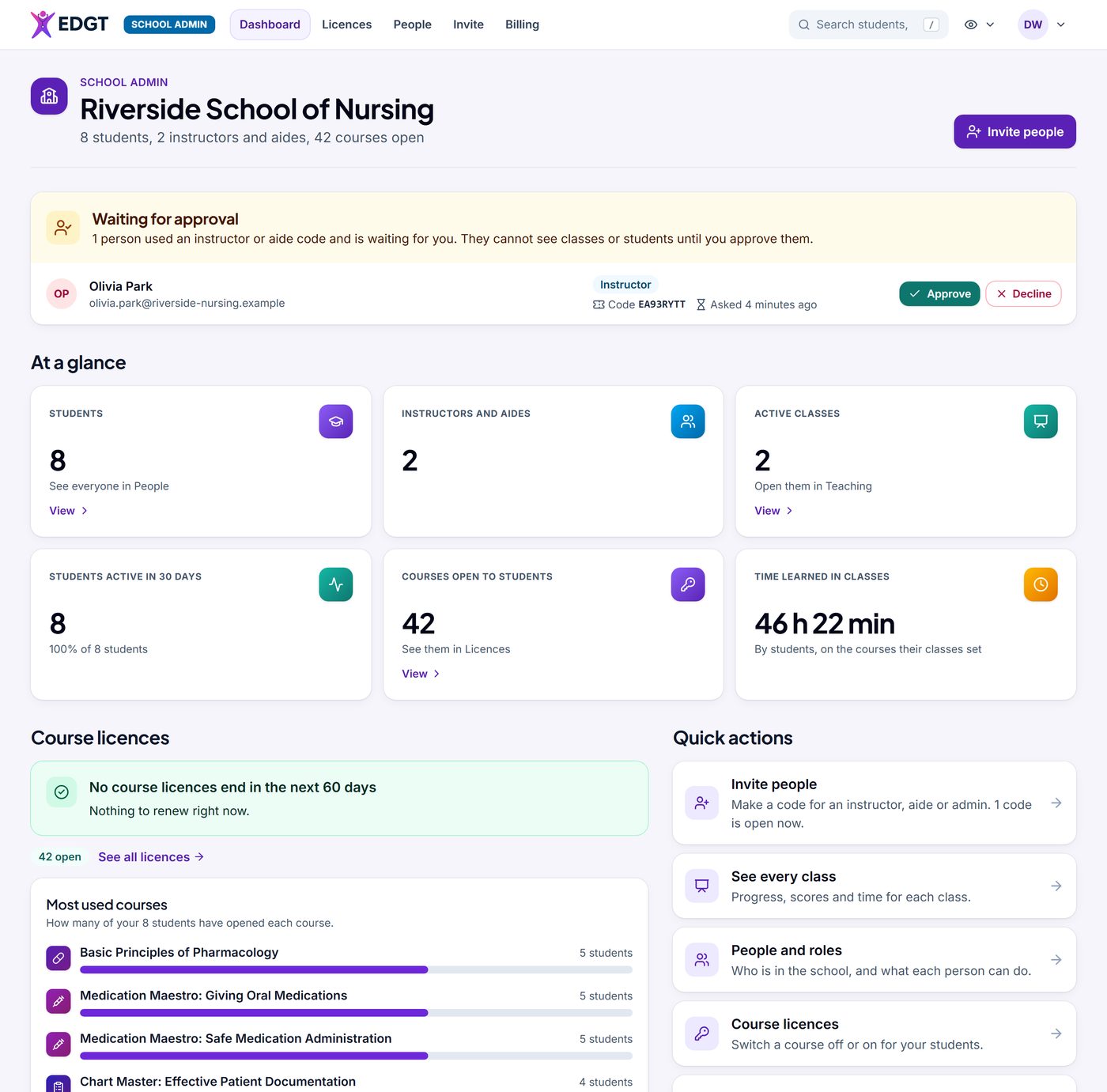
Dashboard, Licences, People, Invite and Billing each have their own tab.
- Dashboard: students, instructors, classes and time learned, with anyone waiting for your approval at the top.
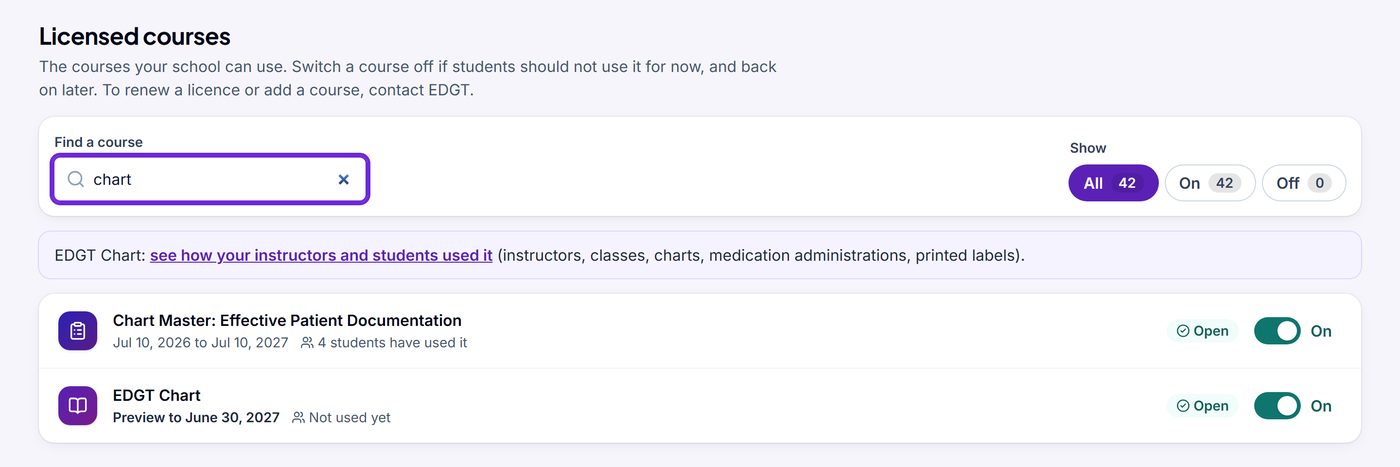
- Licences: every course with its dates and use. Switch a course off for now and back on later, or add a year to courses yourself: the invoice is emailed to your school and is due in 30 days.
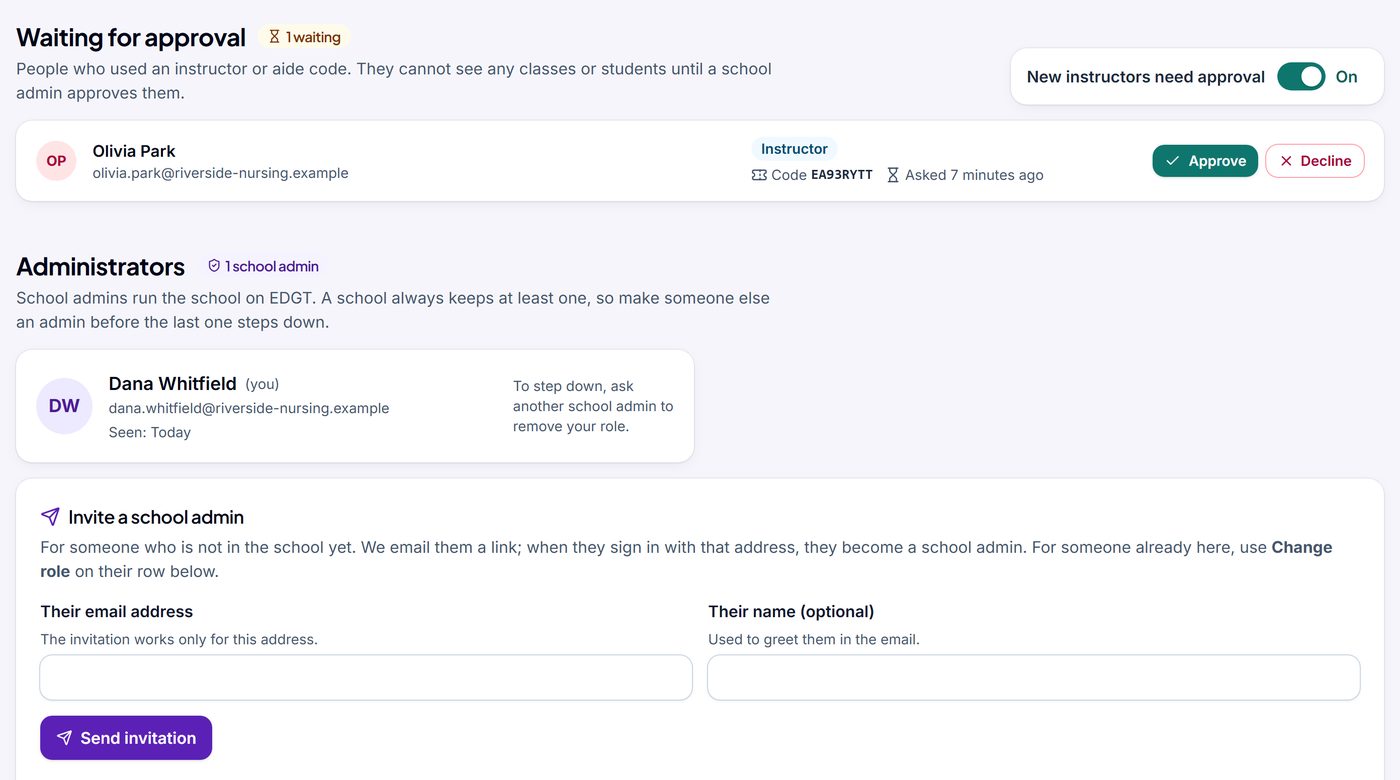
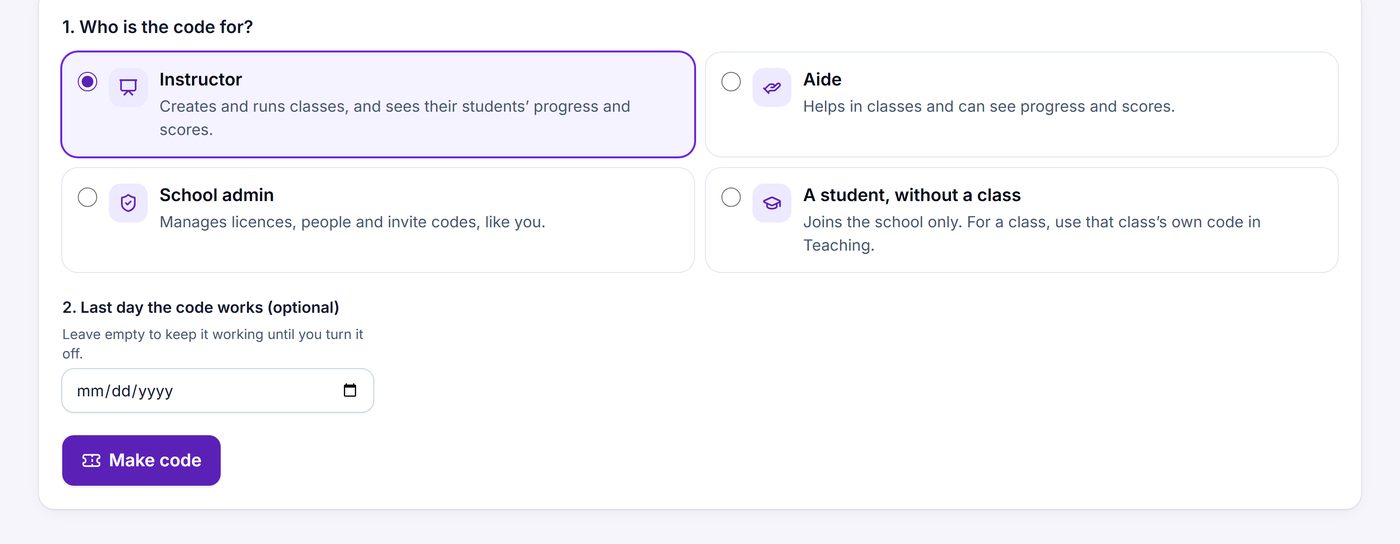
- People: new instructors join with your school’s instructor code and wait for your approval. Invite another school admin by email, or make invite codes.
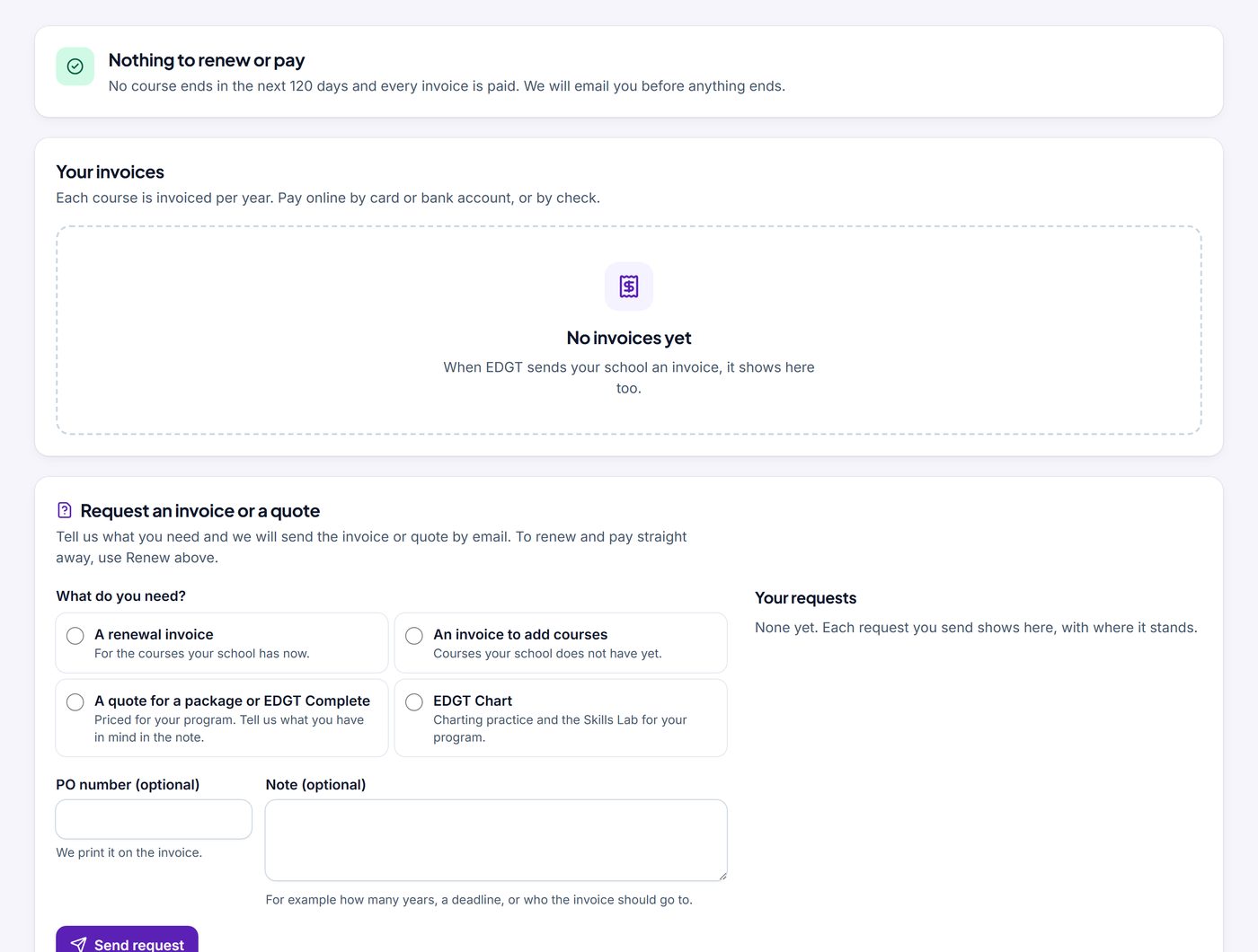
- Billing: your invoices in one place. Pay online by card or ACH bank transfer, or by check. Request an invoice or a quote, with your PO number.
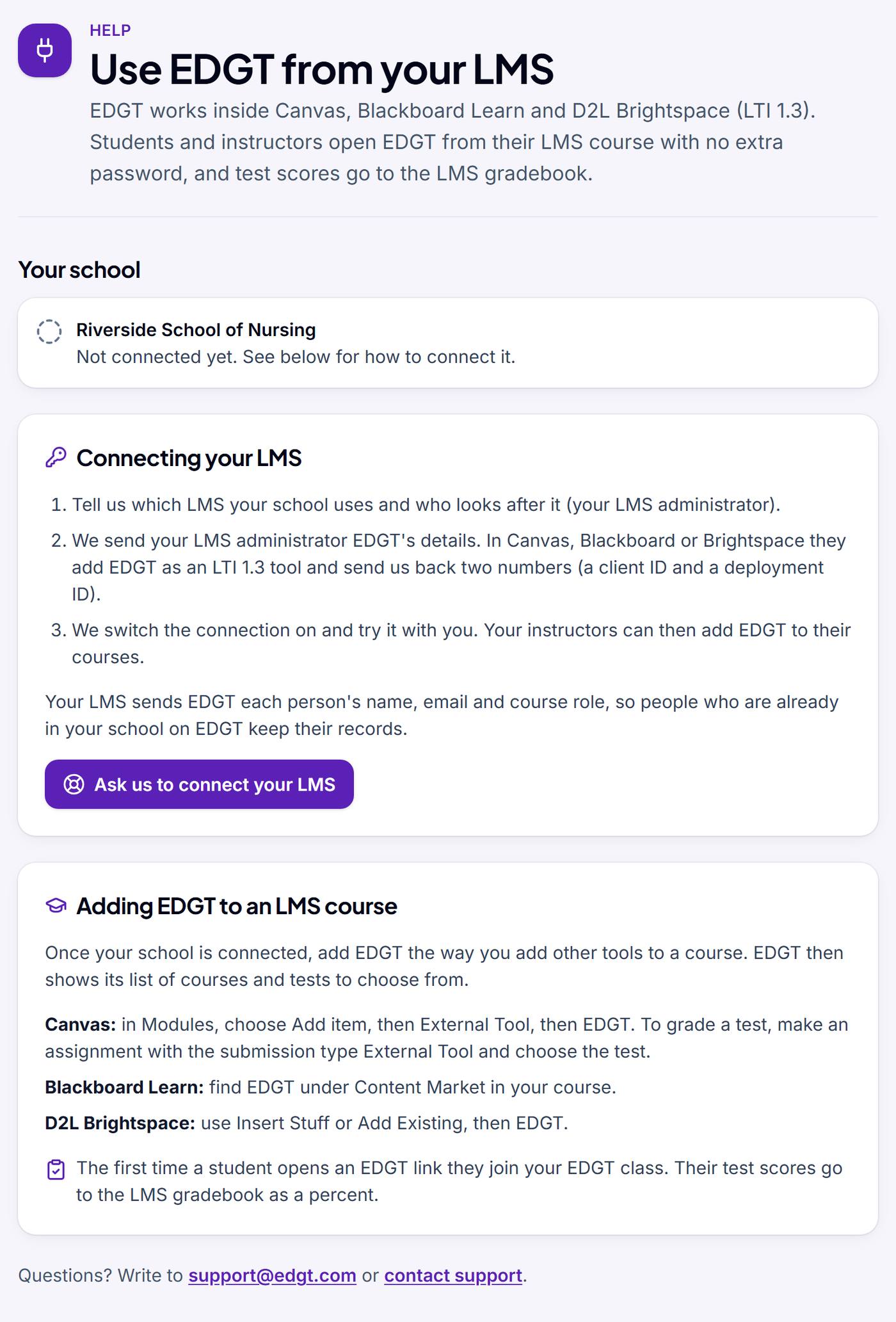
- Your LMS: EDGT works with Canvas, Blackboard Learn and D2L Brightspace, with scores to the gradebook. Ask us at [email protected] and we will set it up.
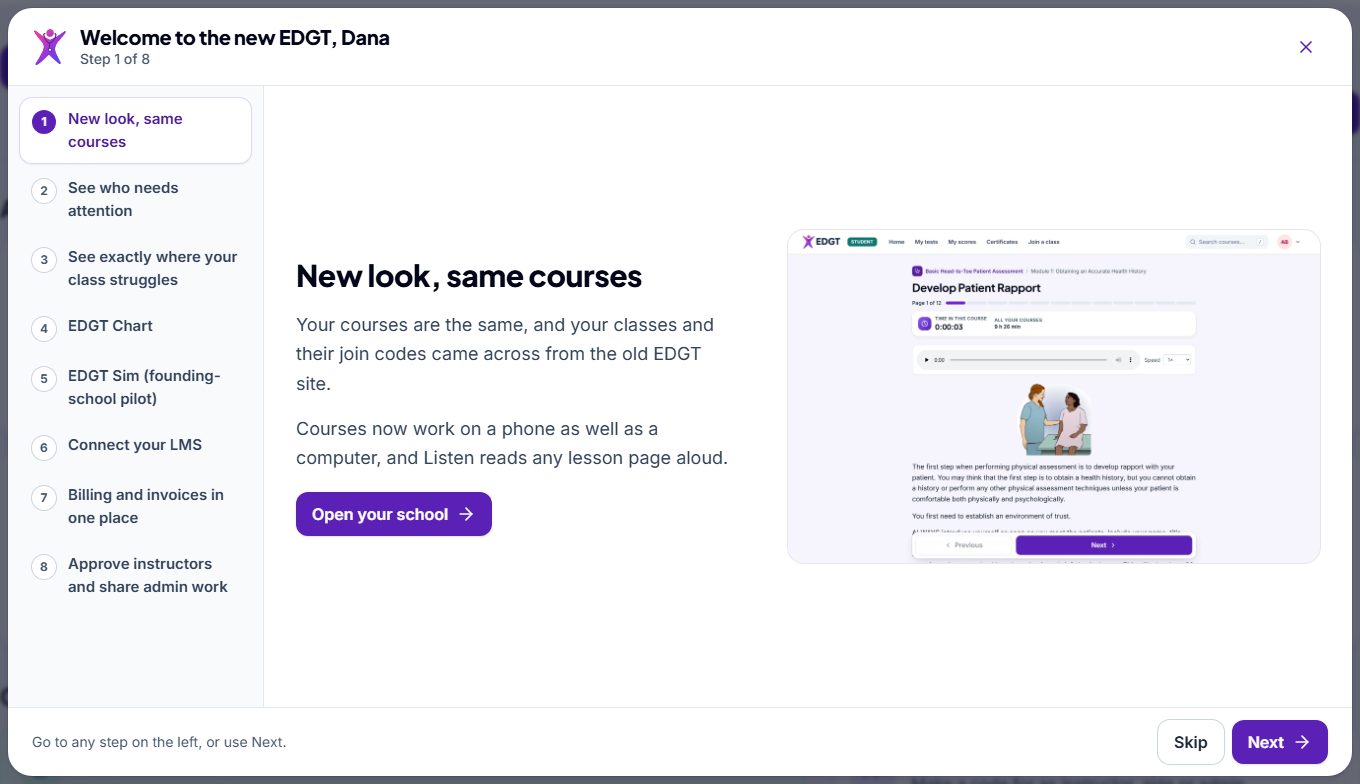
- A short welcome tour at your first sign-in, and again any time from See what’s new in your account menu.
See more screens (4)
For instructors
See who needs you, and where your class struggles
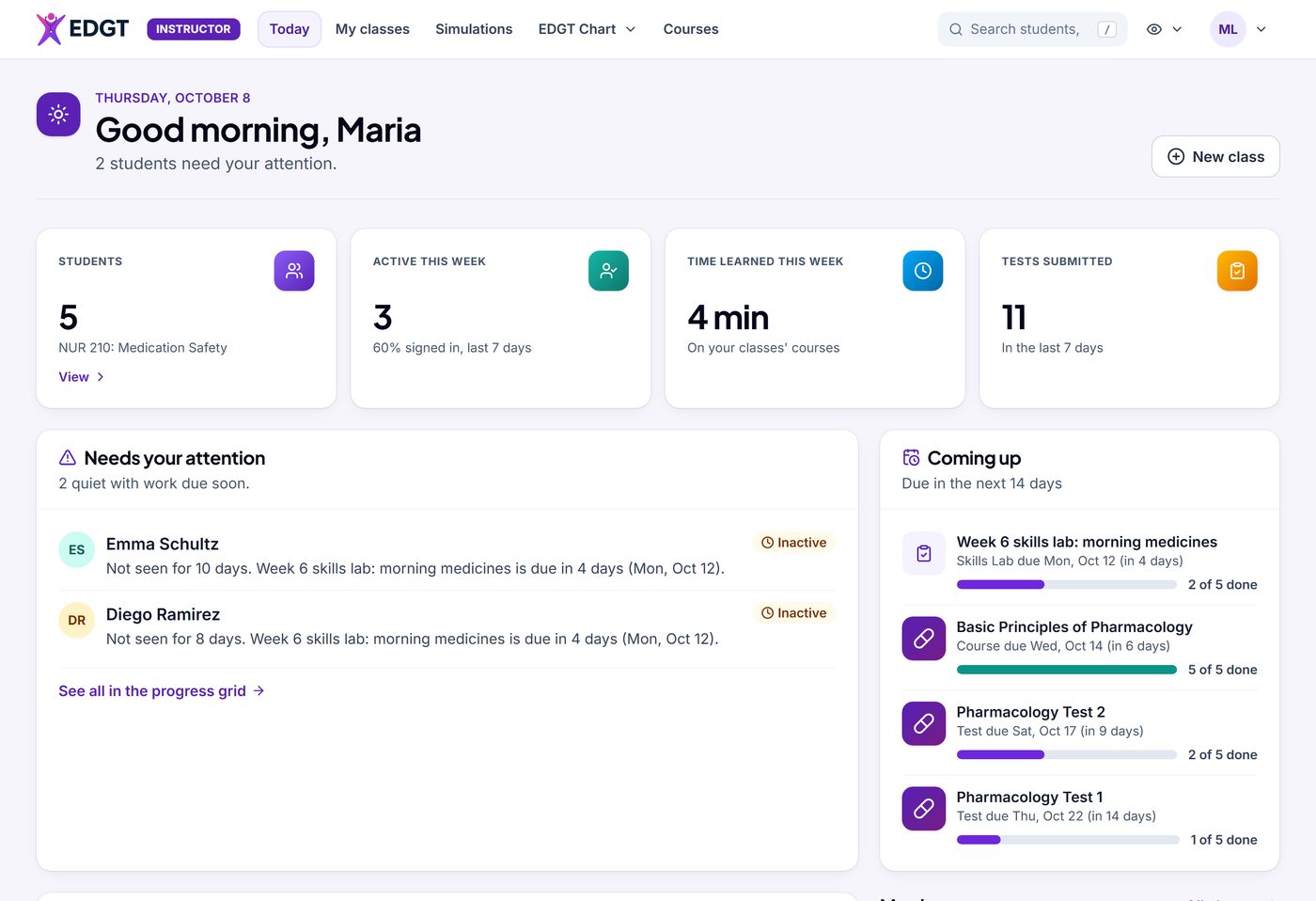
Your classes, students and results are all here, with new pages that show what needs attention first.
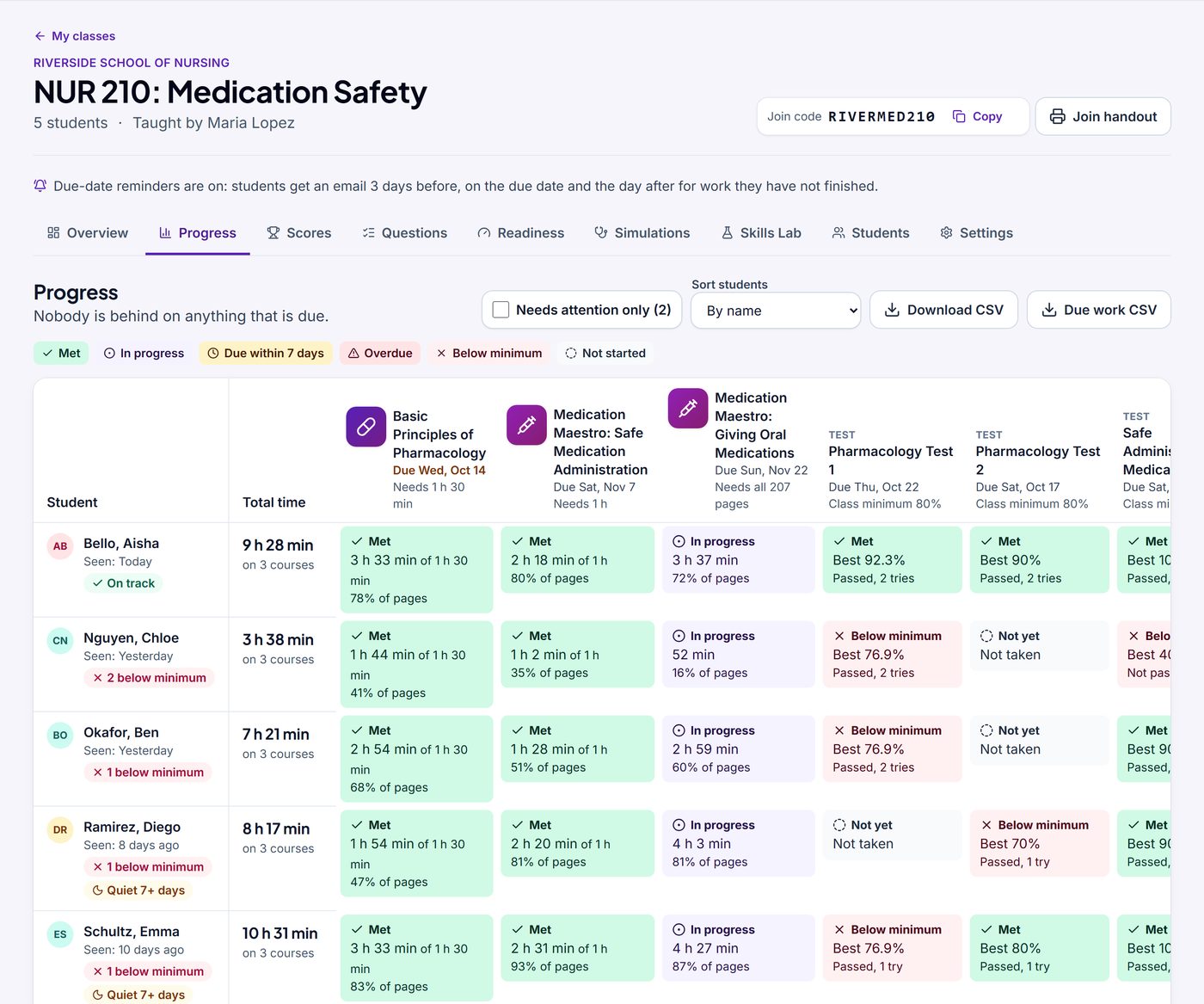
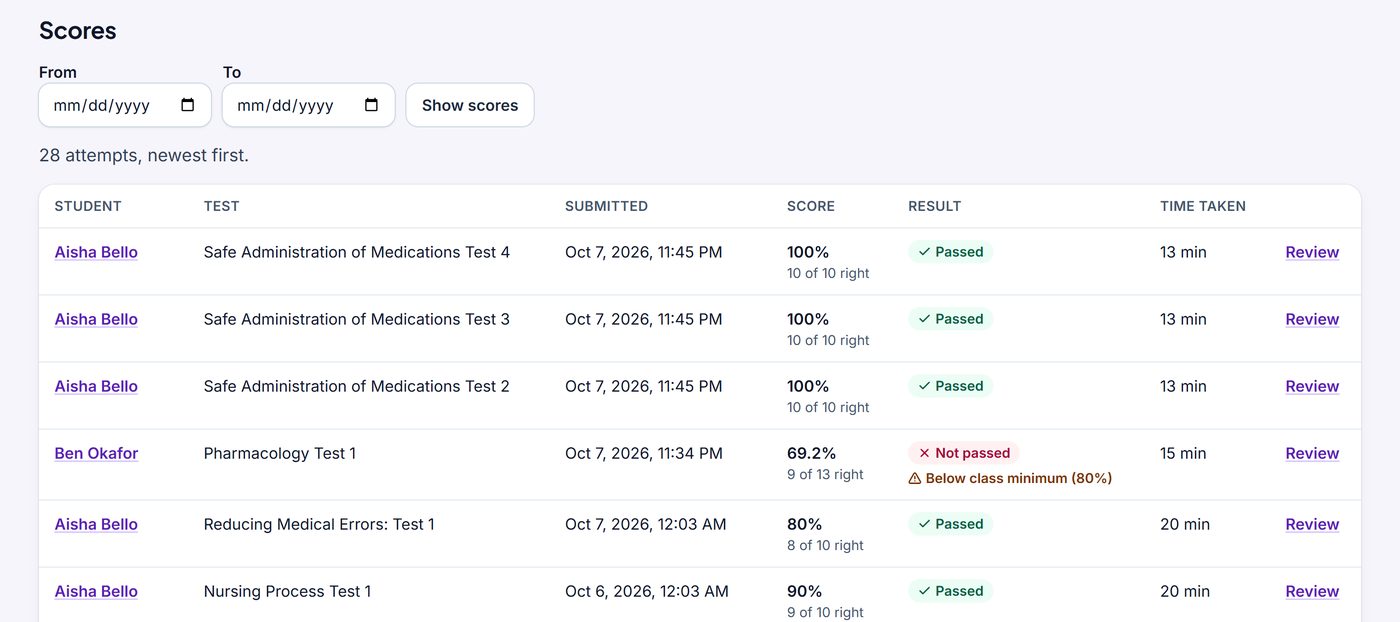
- Today: who has gone quiet or is behind on work that is due, what is coming up in the next 14 days, and recent test results. The progress grid says Met, In progress or Below minimum in words as well as colour, with CSV downloads and a Review link for every attempt.
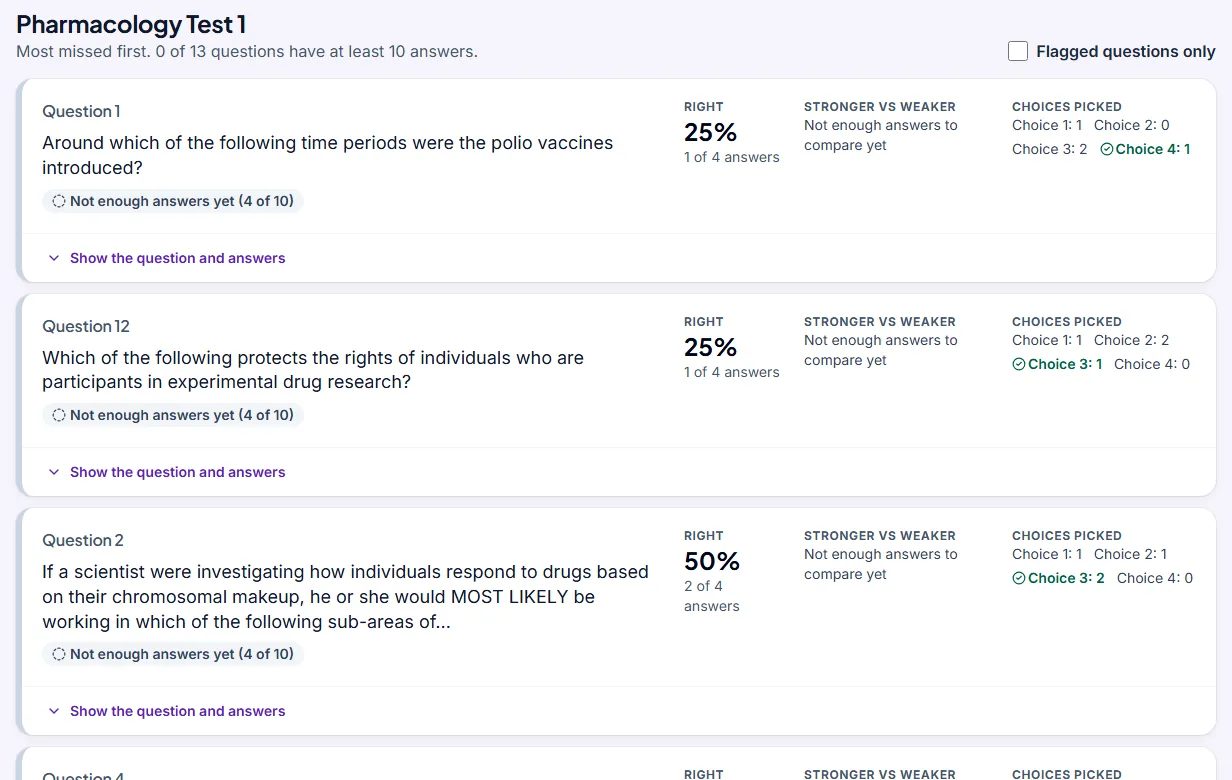
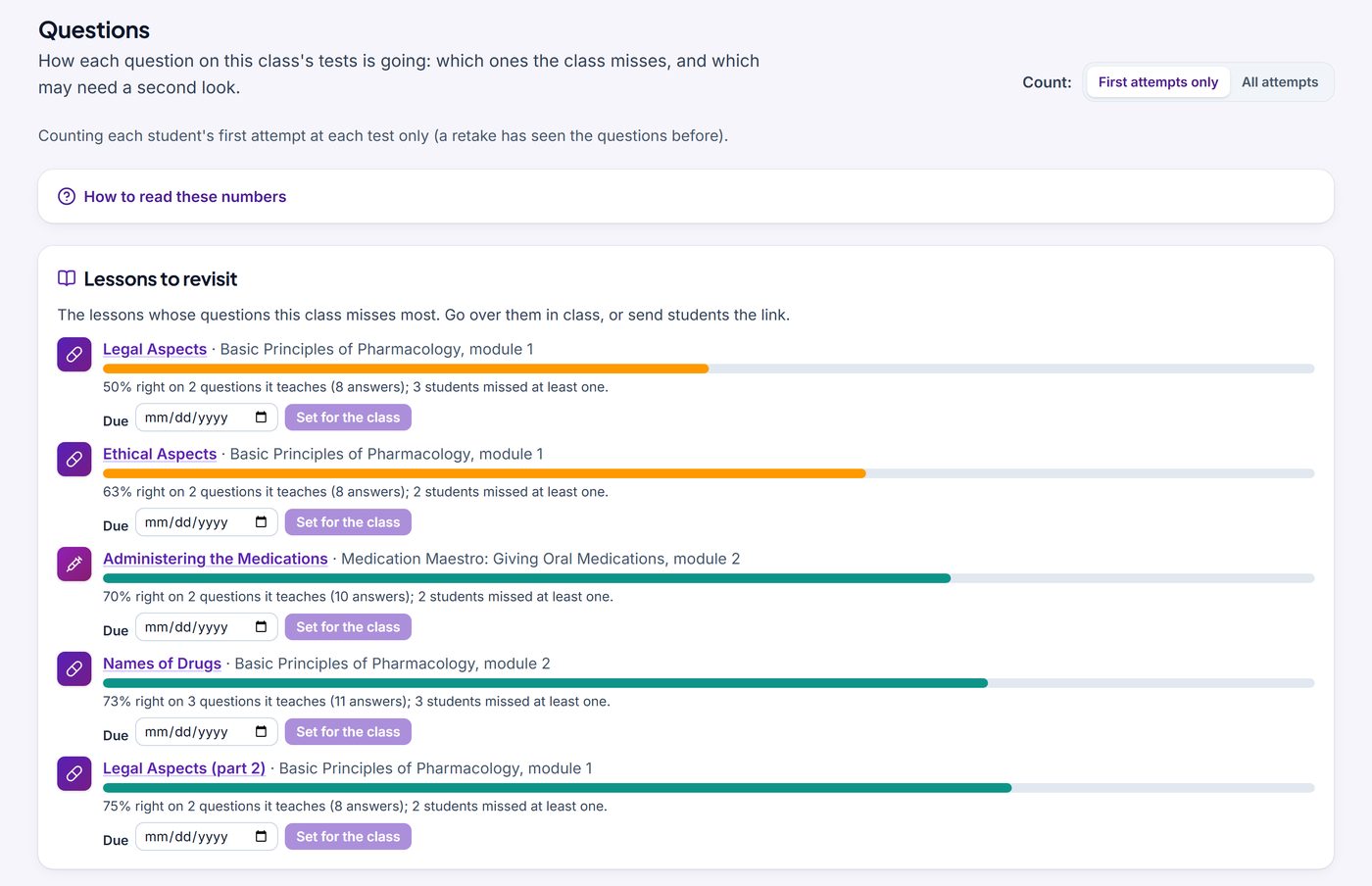
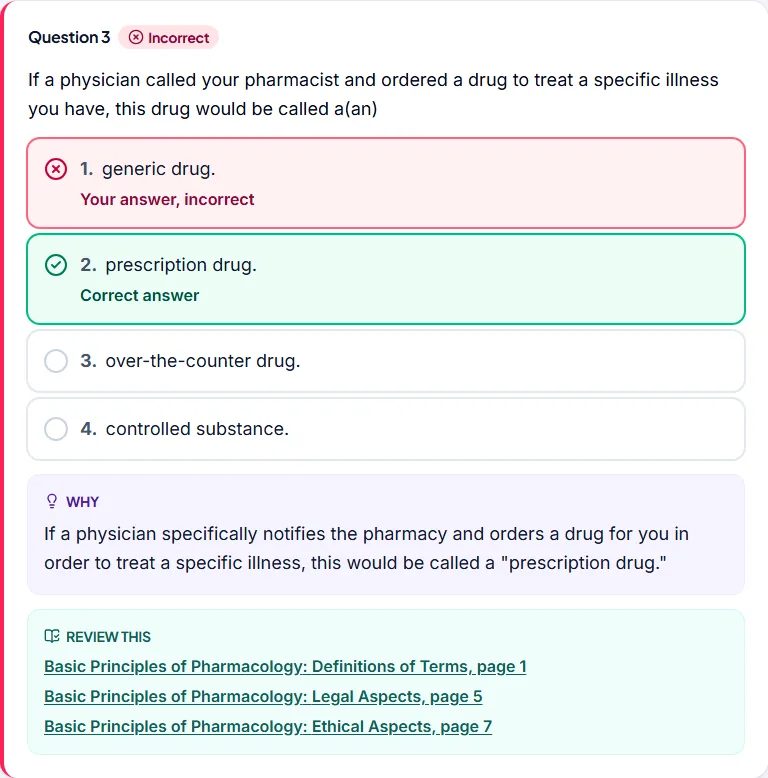
- Question analysis: the most-missed questions, the wrong answers students chose, and the lessons to revisit. After a miss, students choose Review this to go back to the lesson pages.
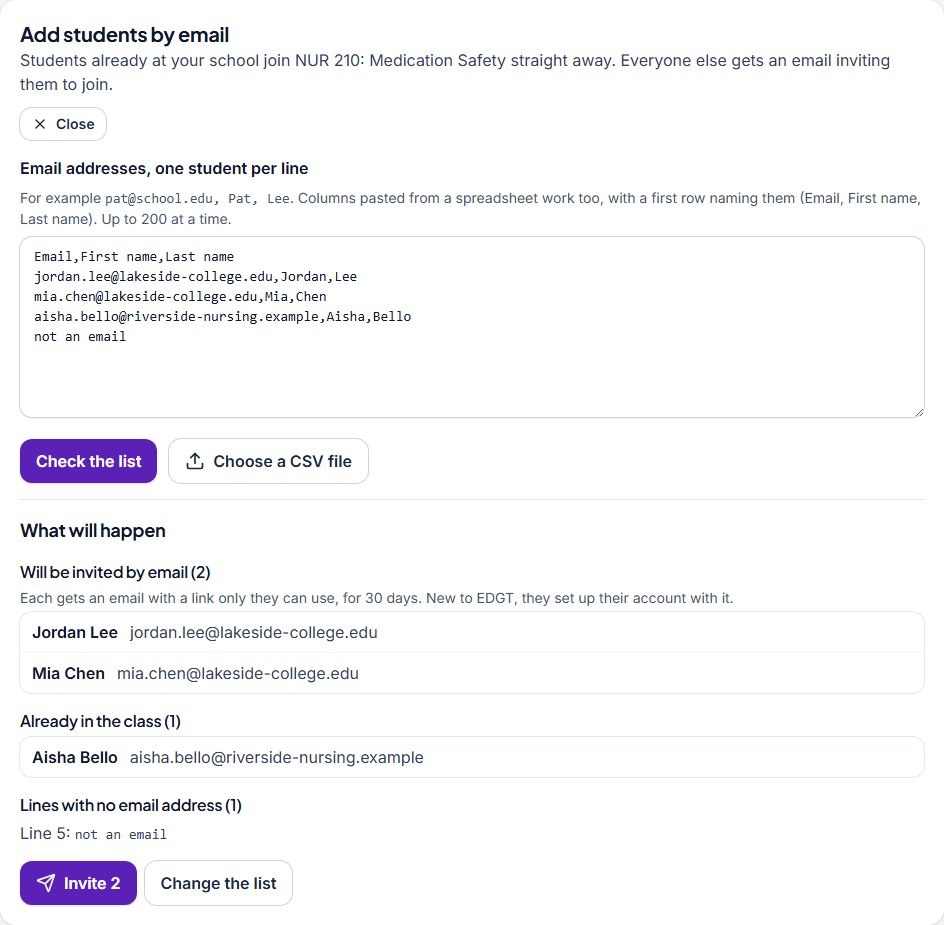
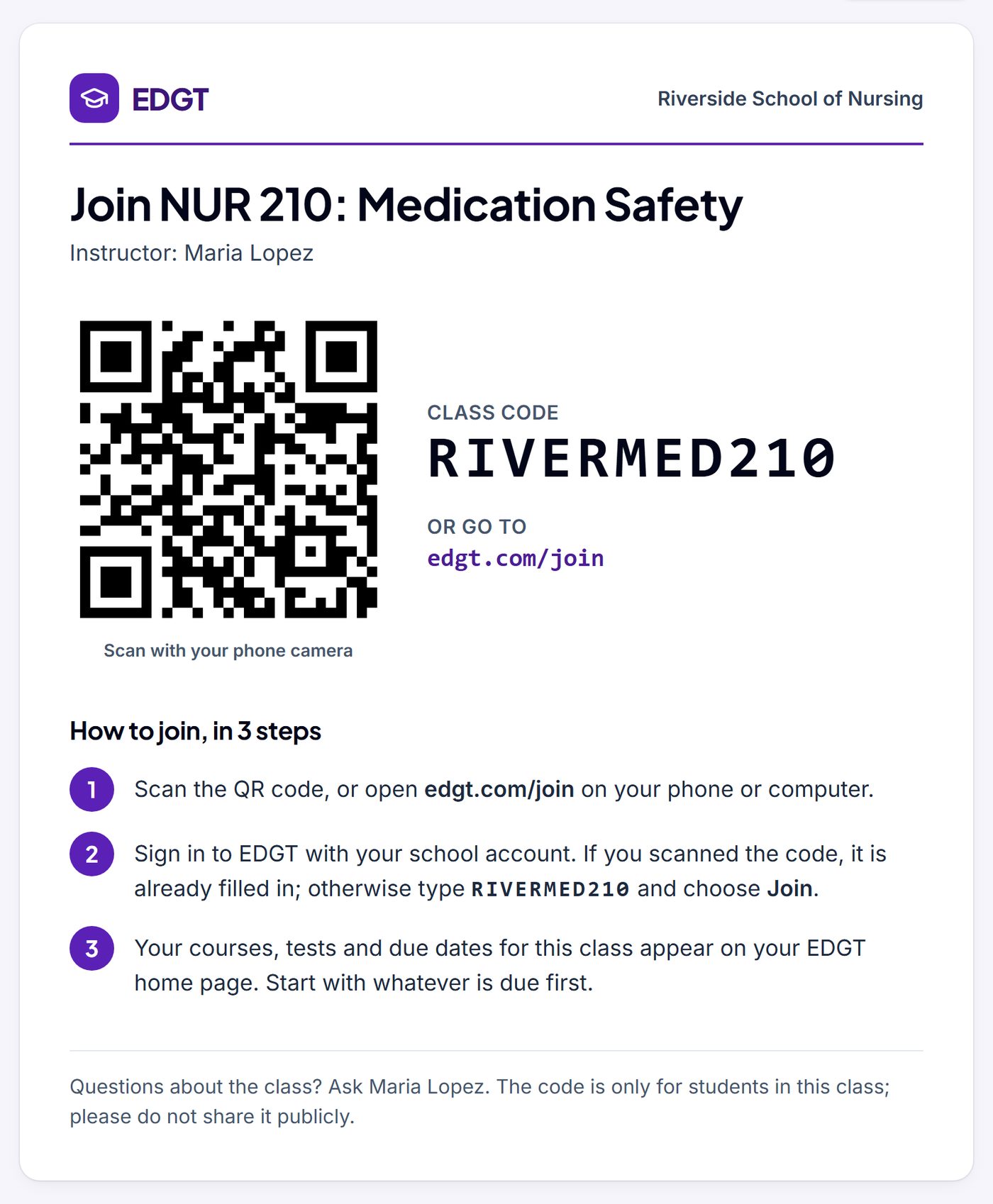
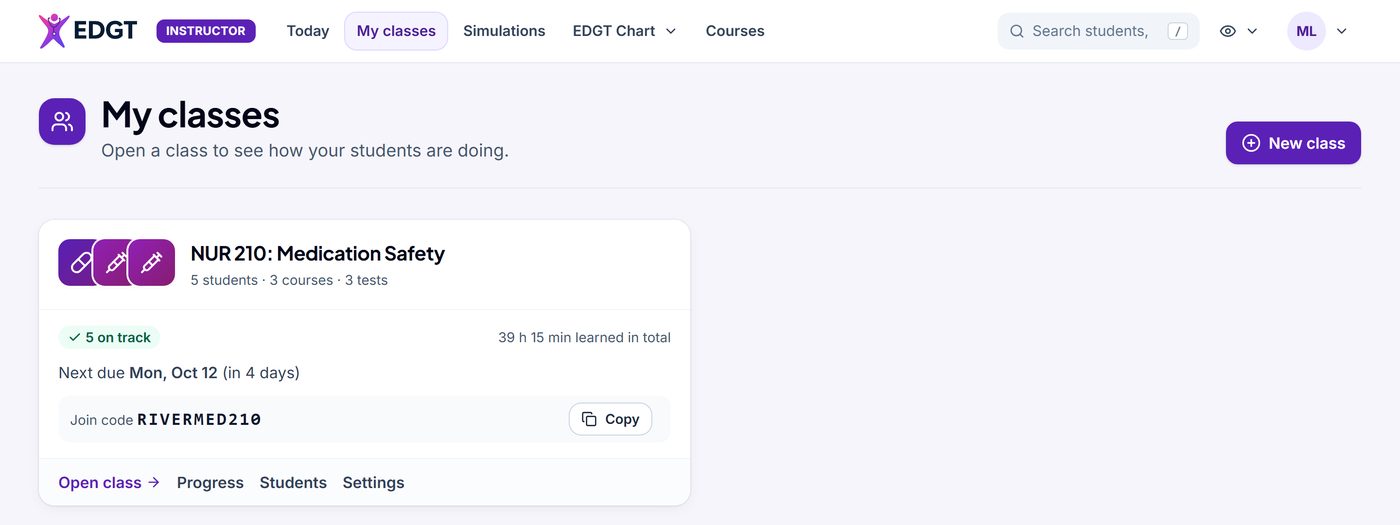
- Your students: each class has its own join code and a Join handout with a QR code; students join at edgt.com/join. Or add students by email: students already at your school join straight away, and everyone else gets an invitation only they can use.
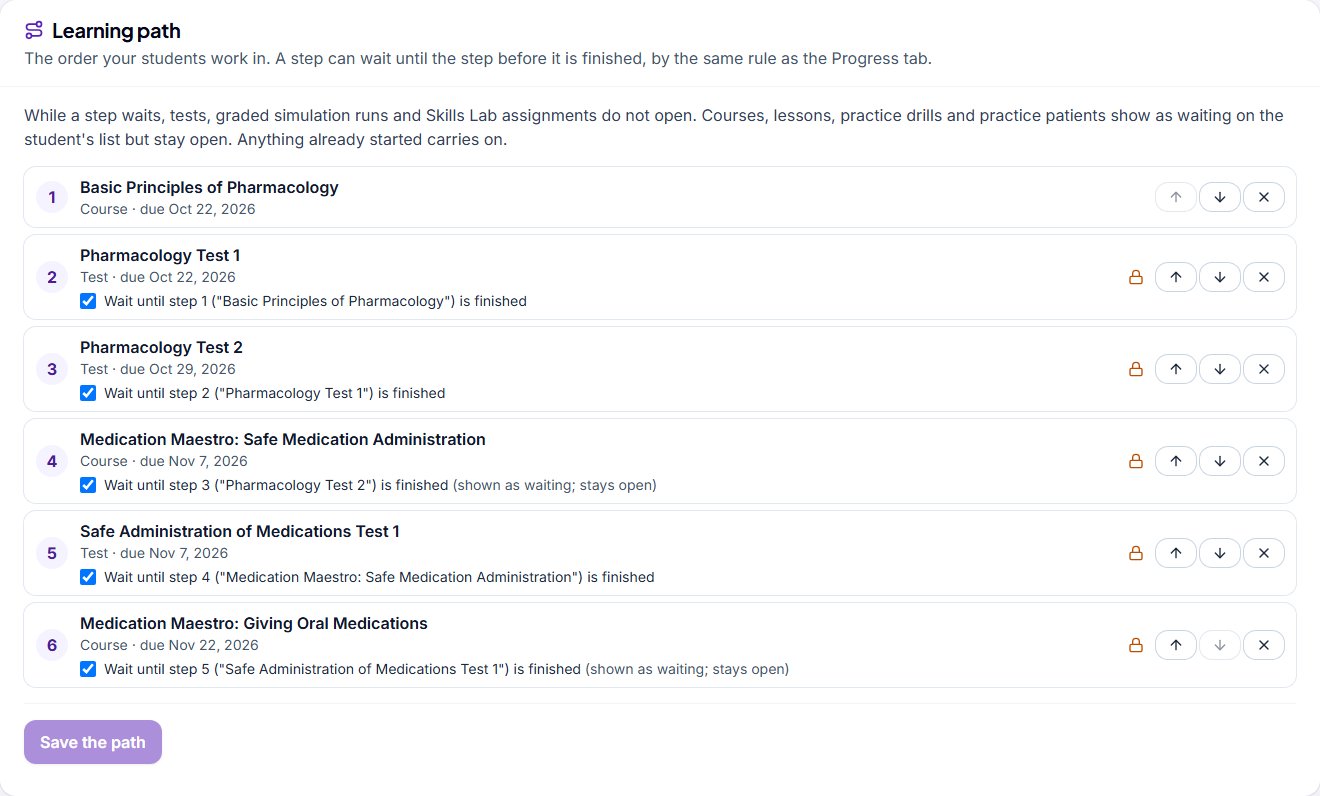
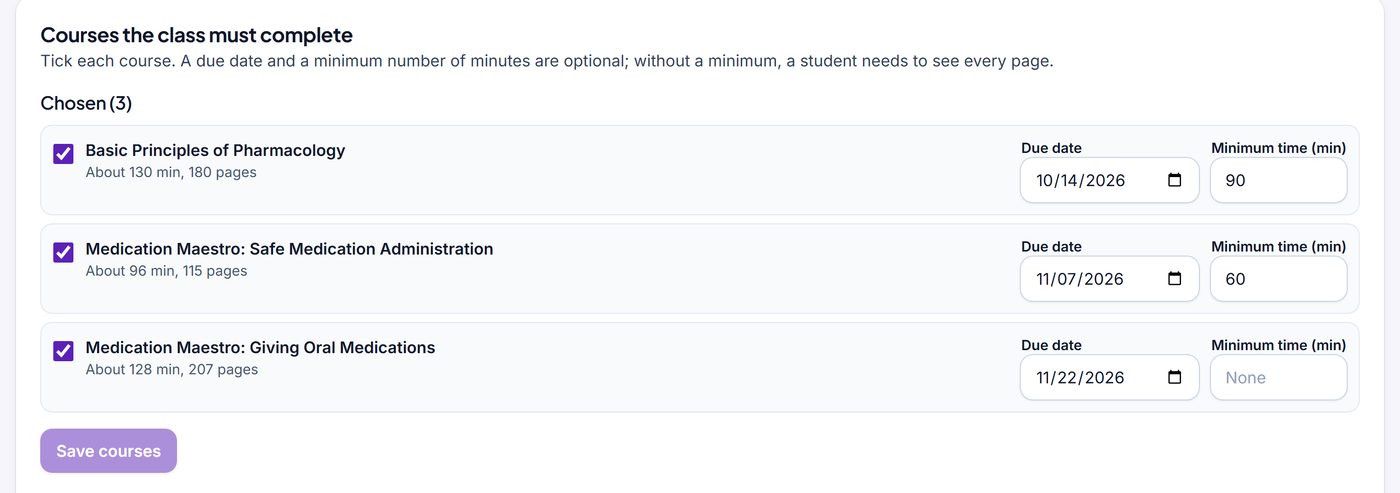
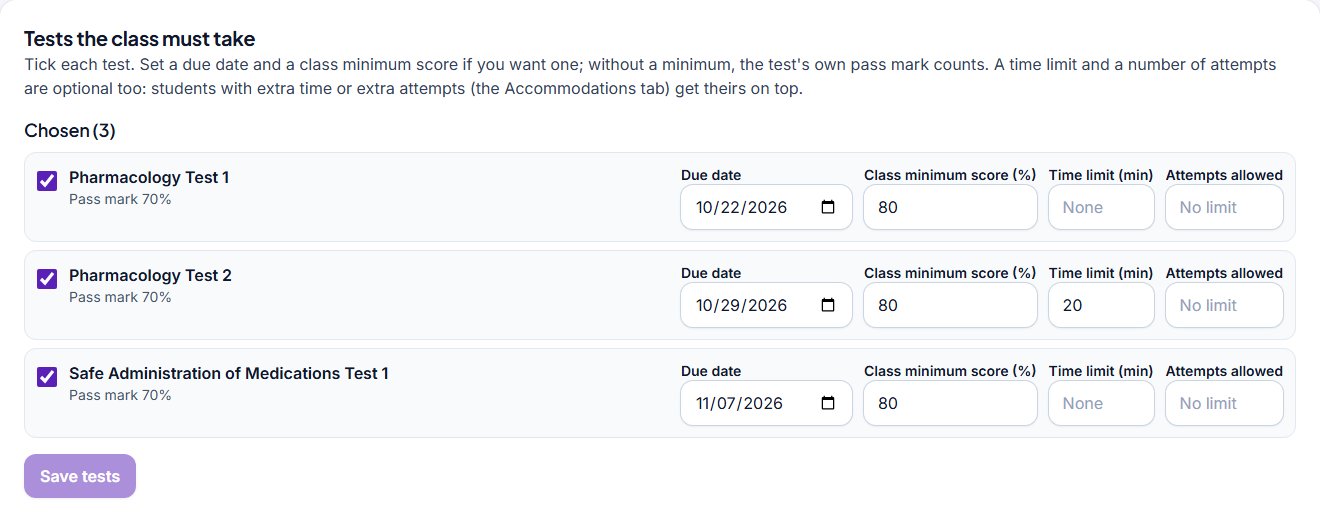
- Due dates and a learning path: set a due date, a minimum time and a class minimum score, and students get reminder emails 3 days before, on the due date and the day after. Put the class’s work in order: a test or Skills Lab assignment opens once the step before it is finished, and reading and practice show what to finish first.
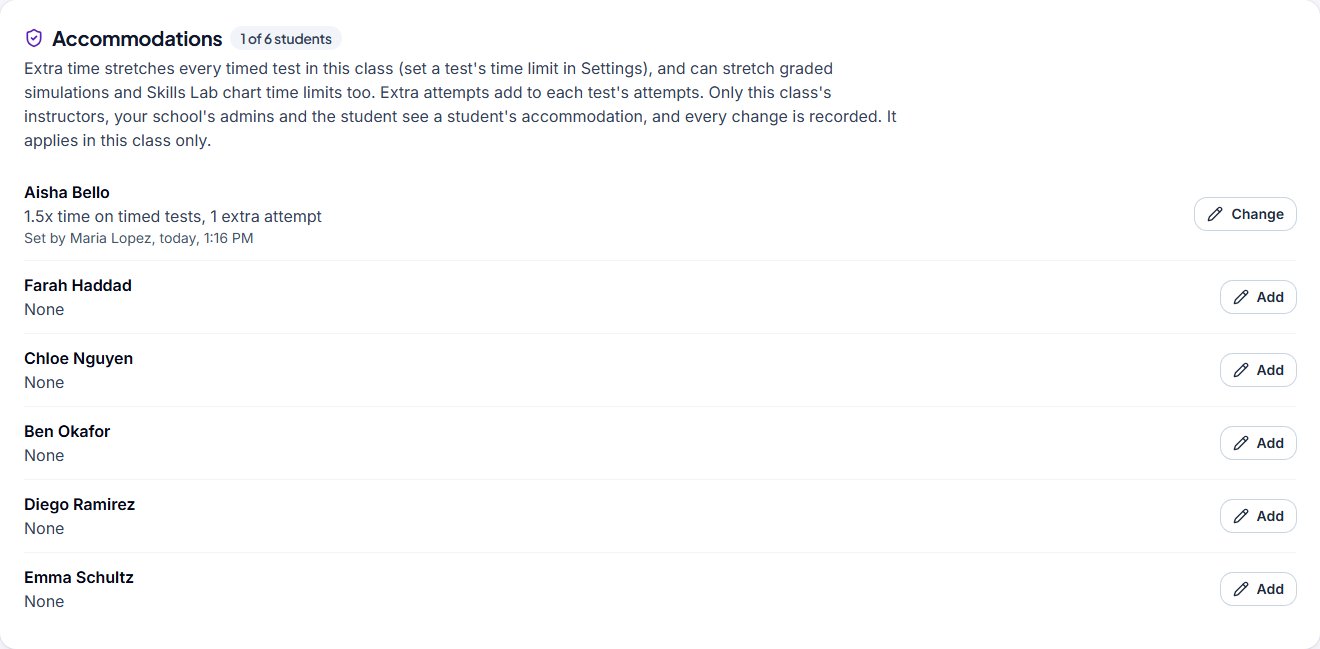
- Tests your way: a time limit and a number of attempts for each test, extra time or extra attempts for a student who needs them, and your own tests from your school’s question bank (written by your school, not reviewed by EDGT).
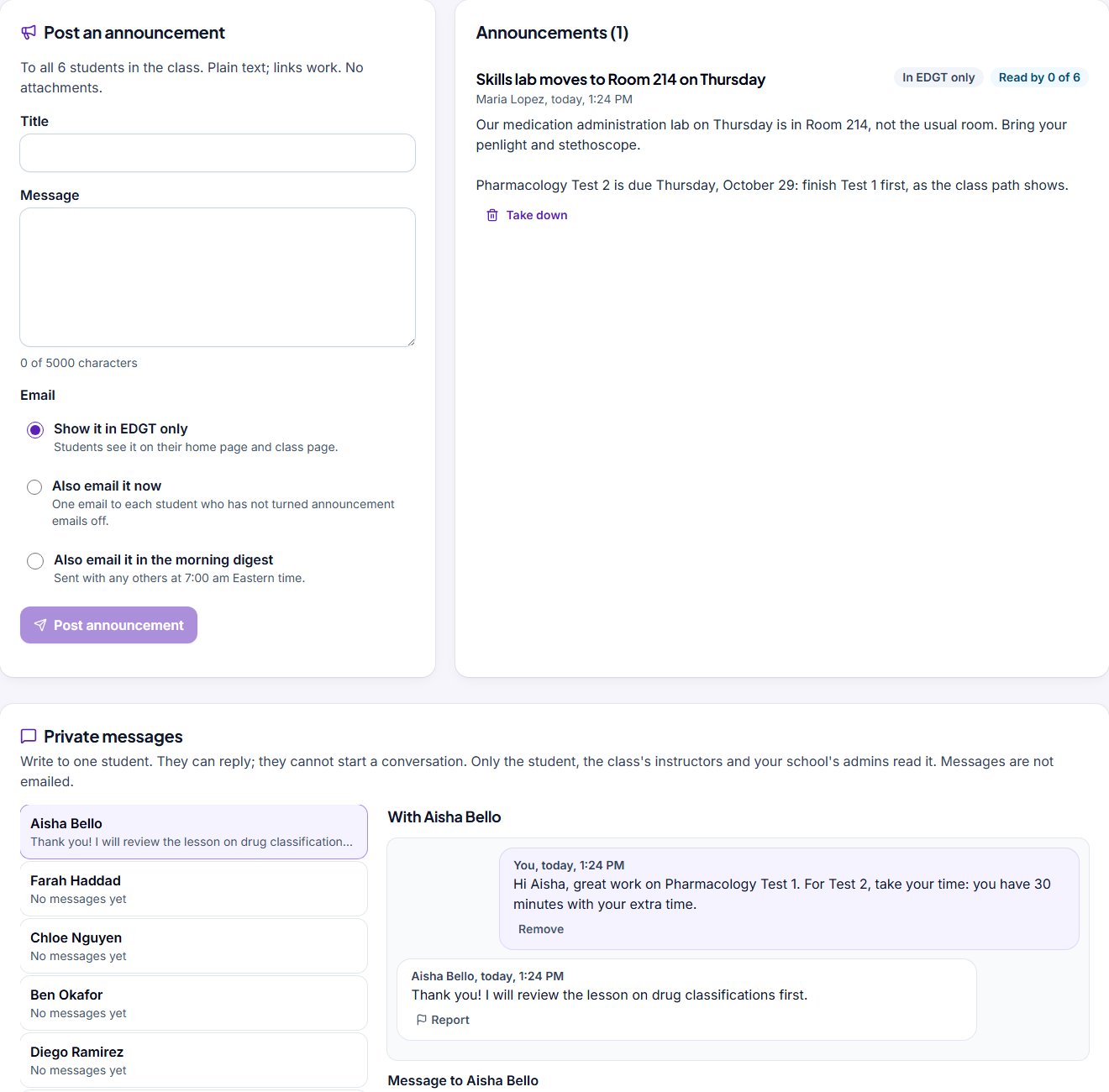
- Announcements and messages: post to the whole class, shown in EDGT and emailed if you choose, and write privately to one student, who can reply.
See more screens (12)
For students
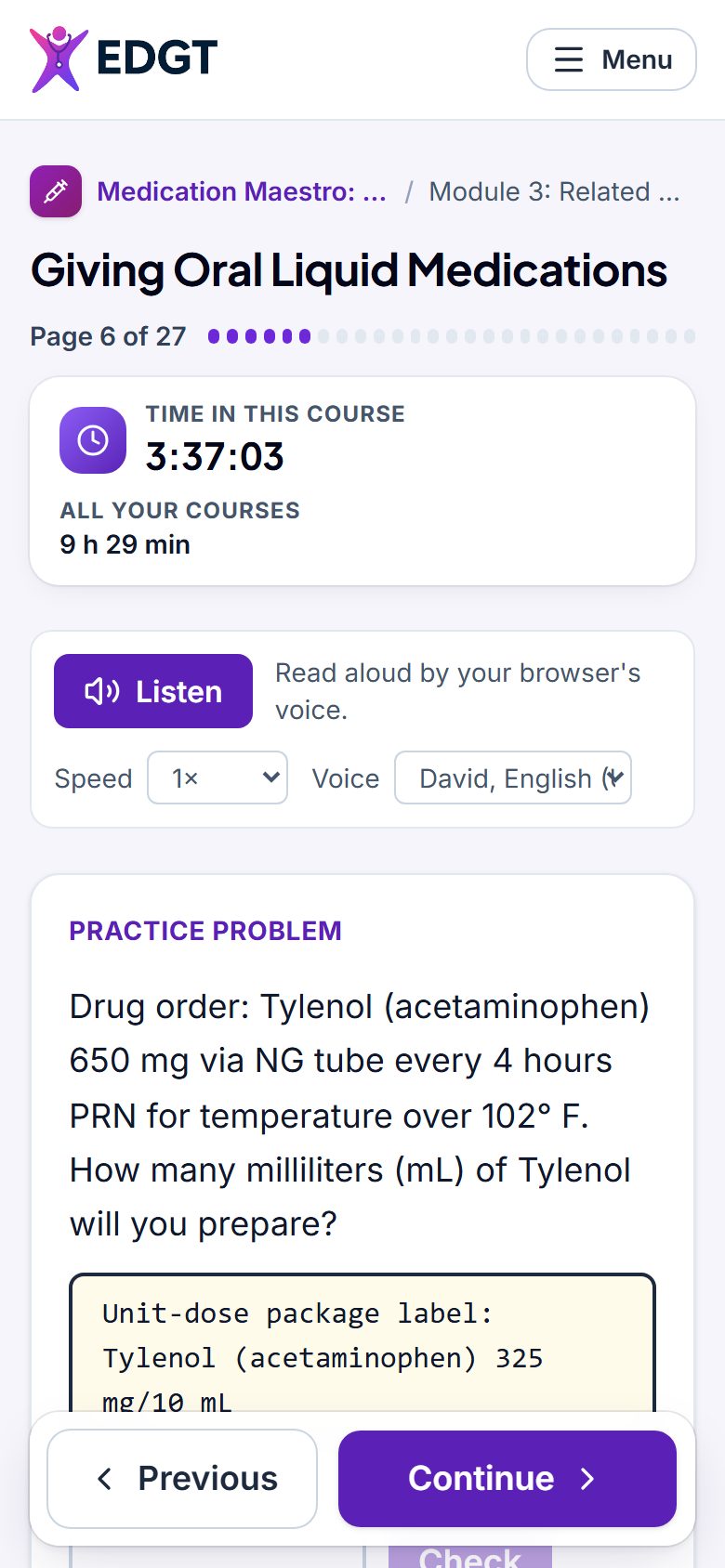
Your courses and tests, on a computer or a phone
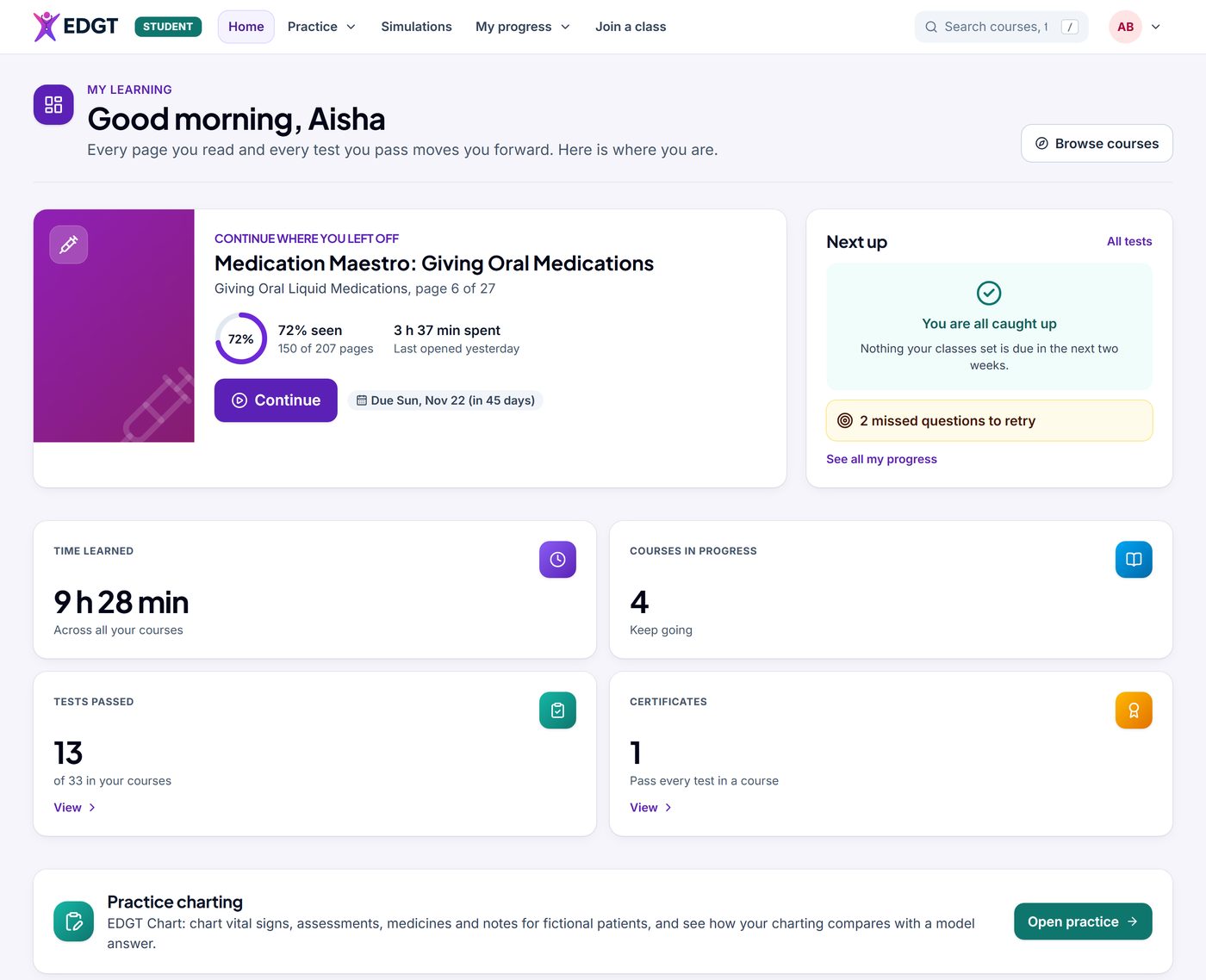
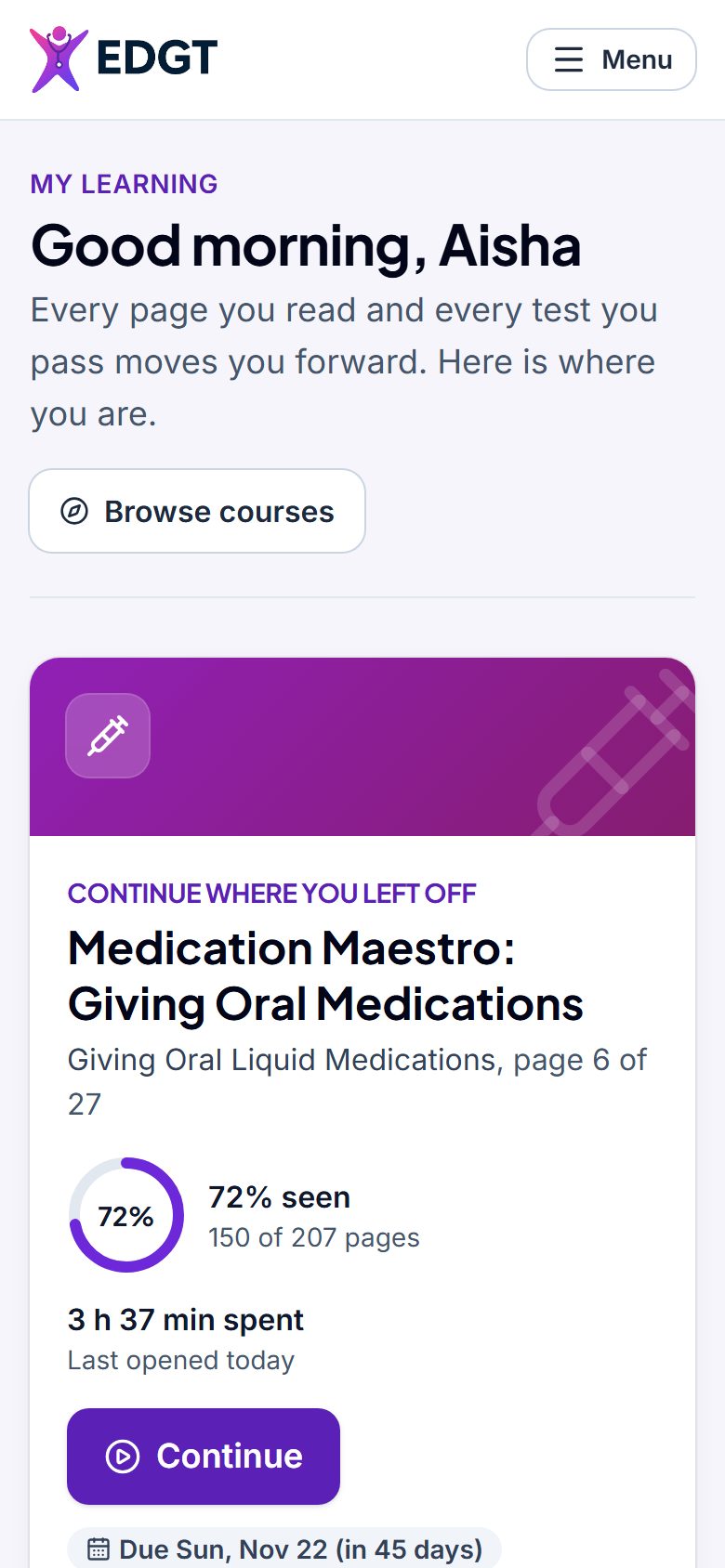
Everything starts on your home page: what to continue, what is due, your tests and your certificates.
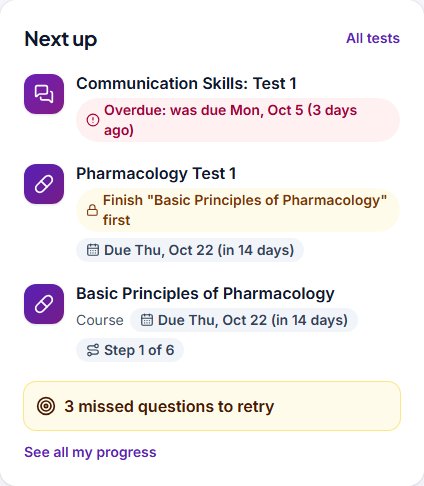
- Home: pick up where you left off, see what is due next, your time learned, tests passed and certificates. When your class works in order, it shows each step and what to finish first.
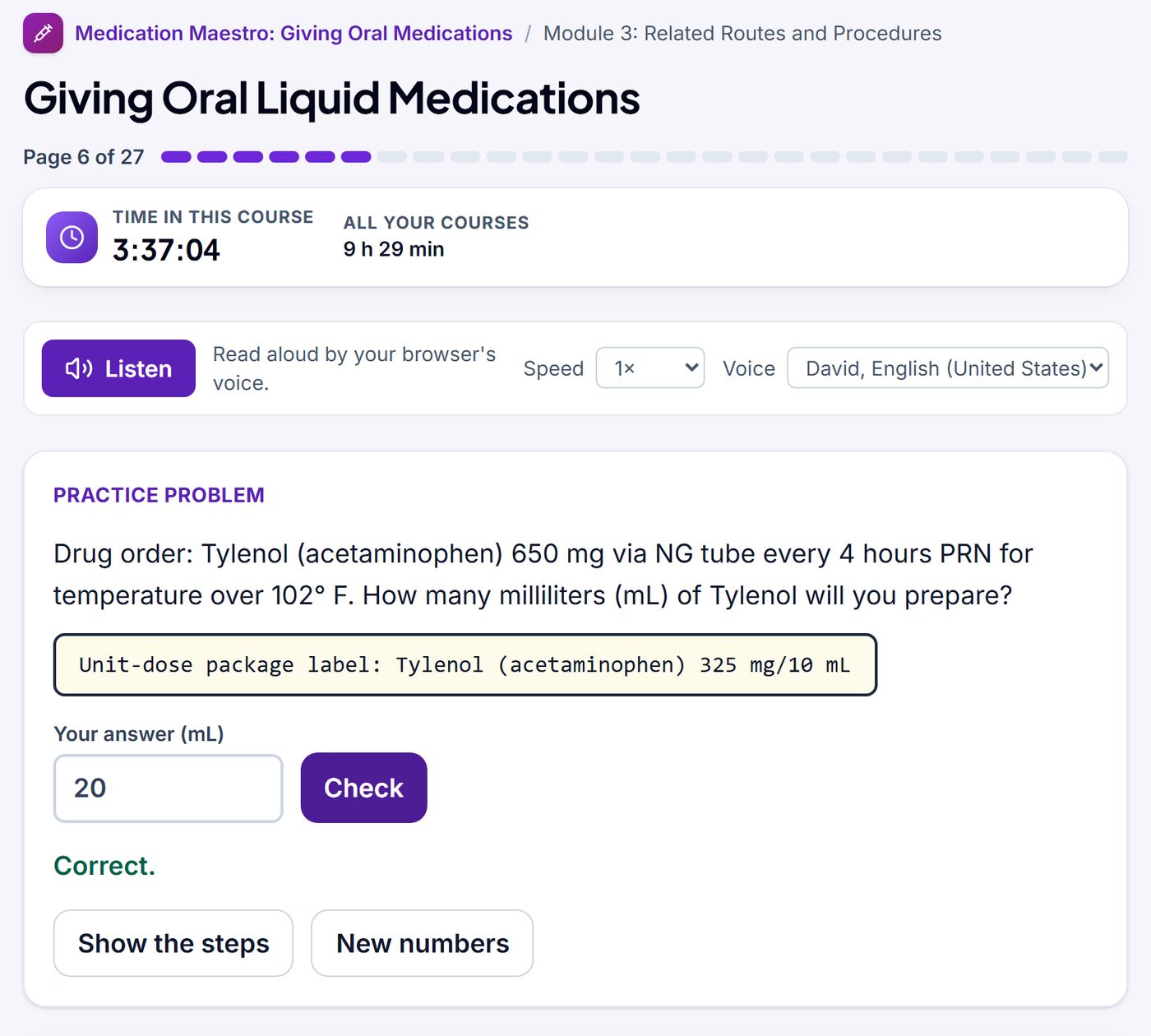
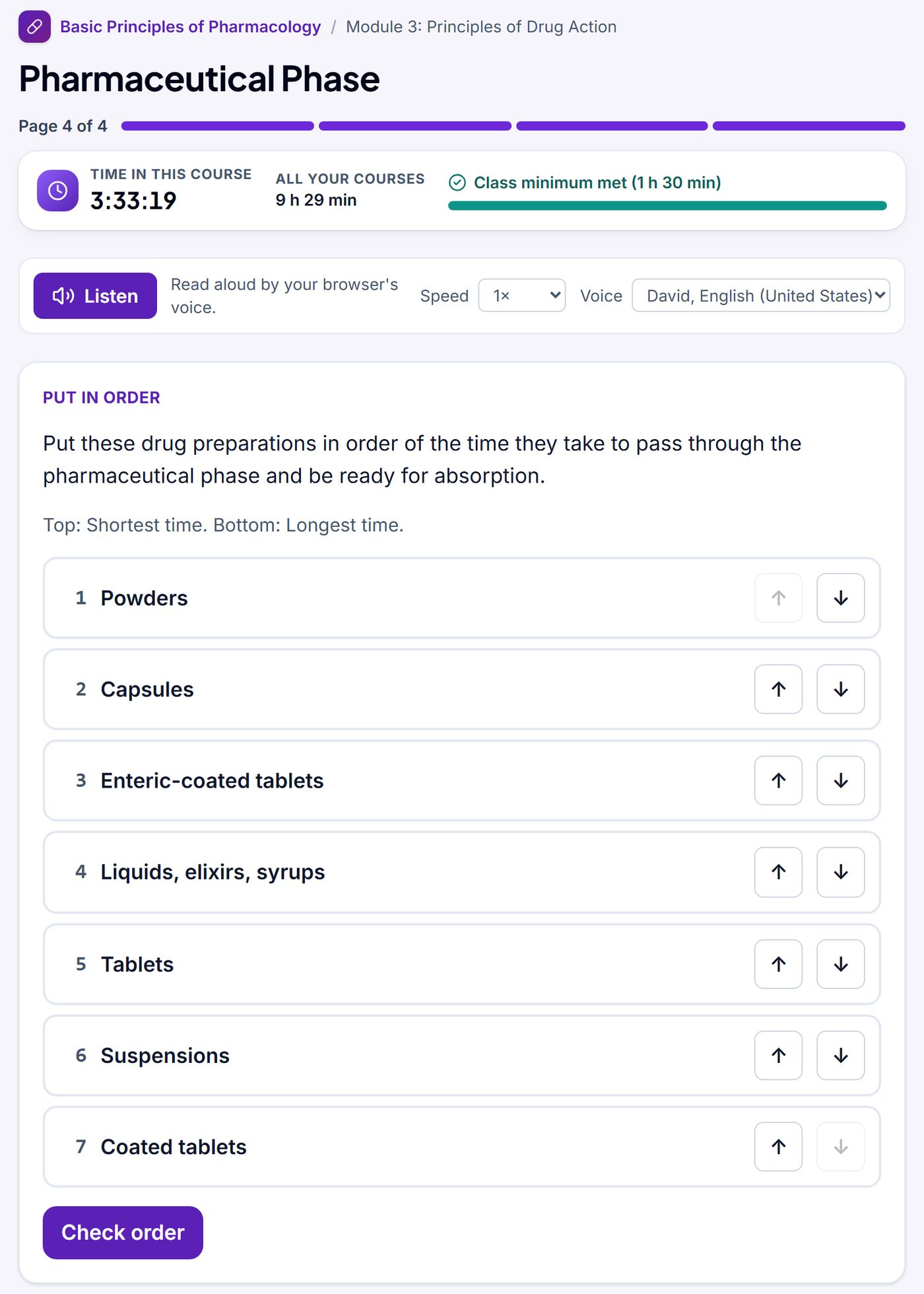
- Courses work on a phone. Narration plays where it was recorded, and Listen reads any lesson page aloud. Many old Flash exercises, such as dosage problems with fresh numbers, are rebuilt. Add EDGT to your phone’s home screen to open it like an app.
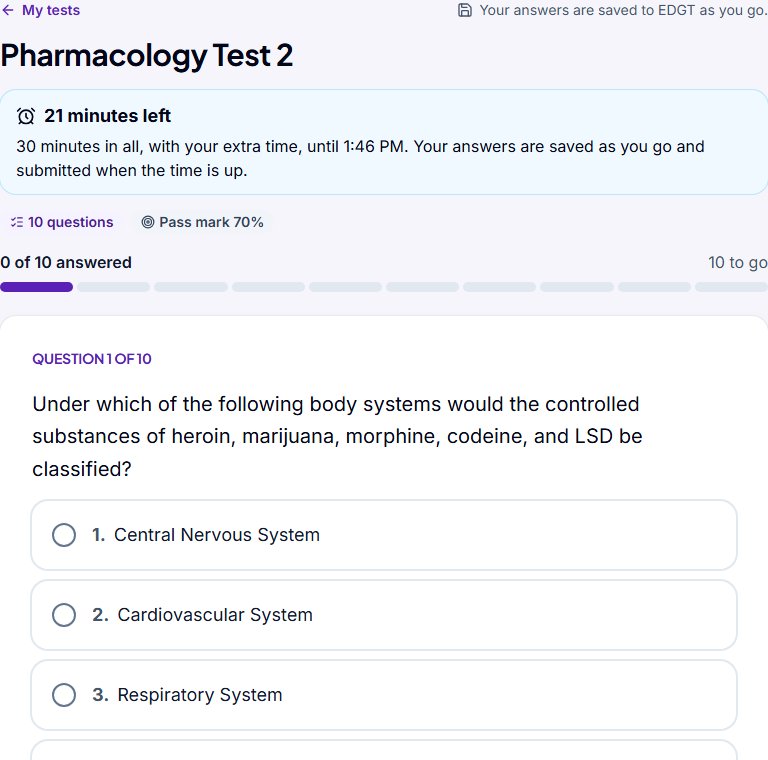
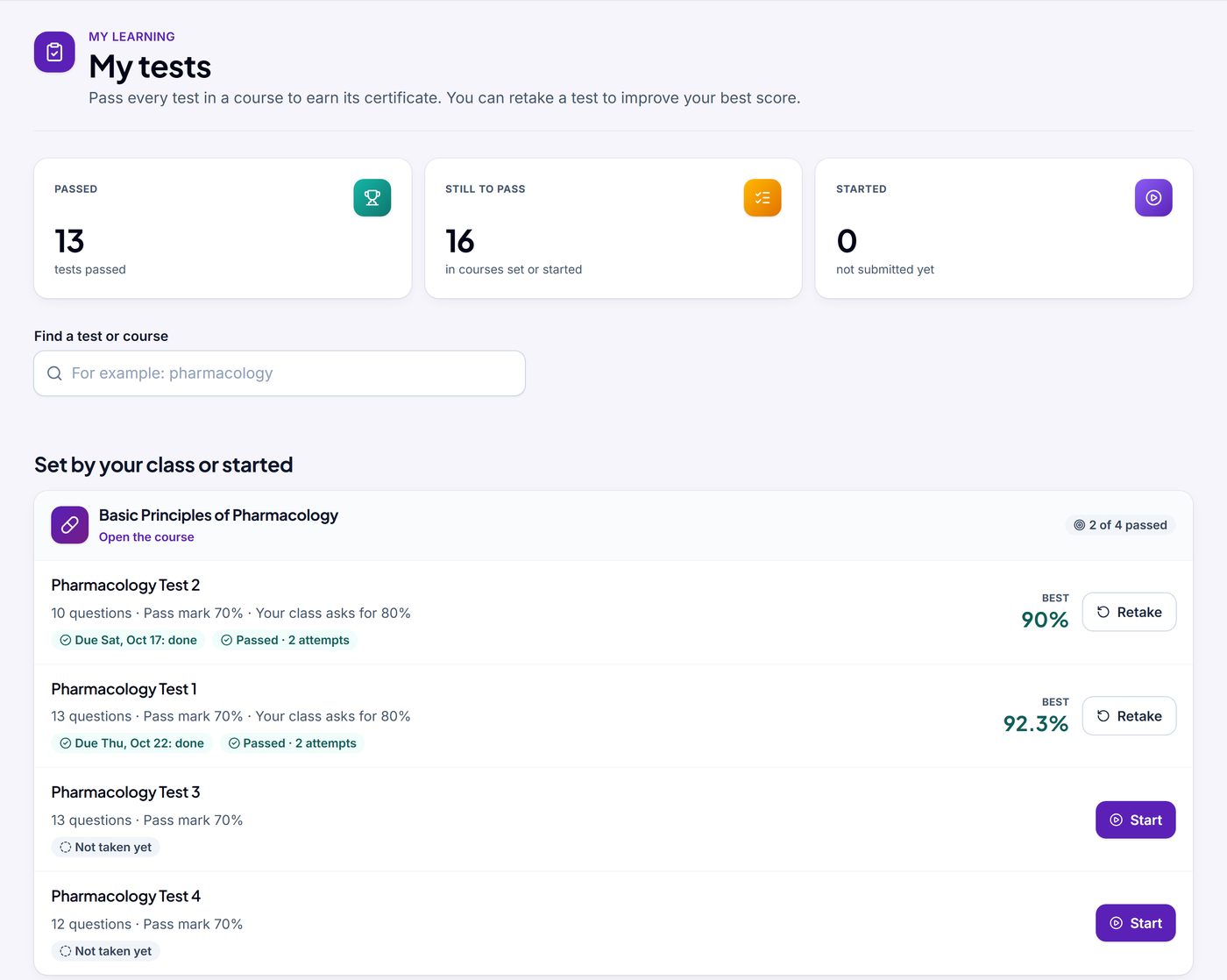
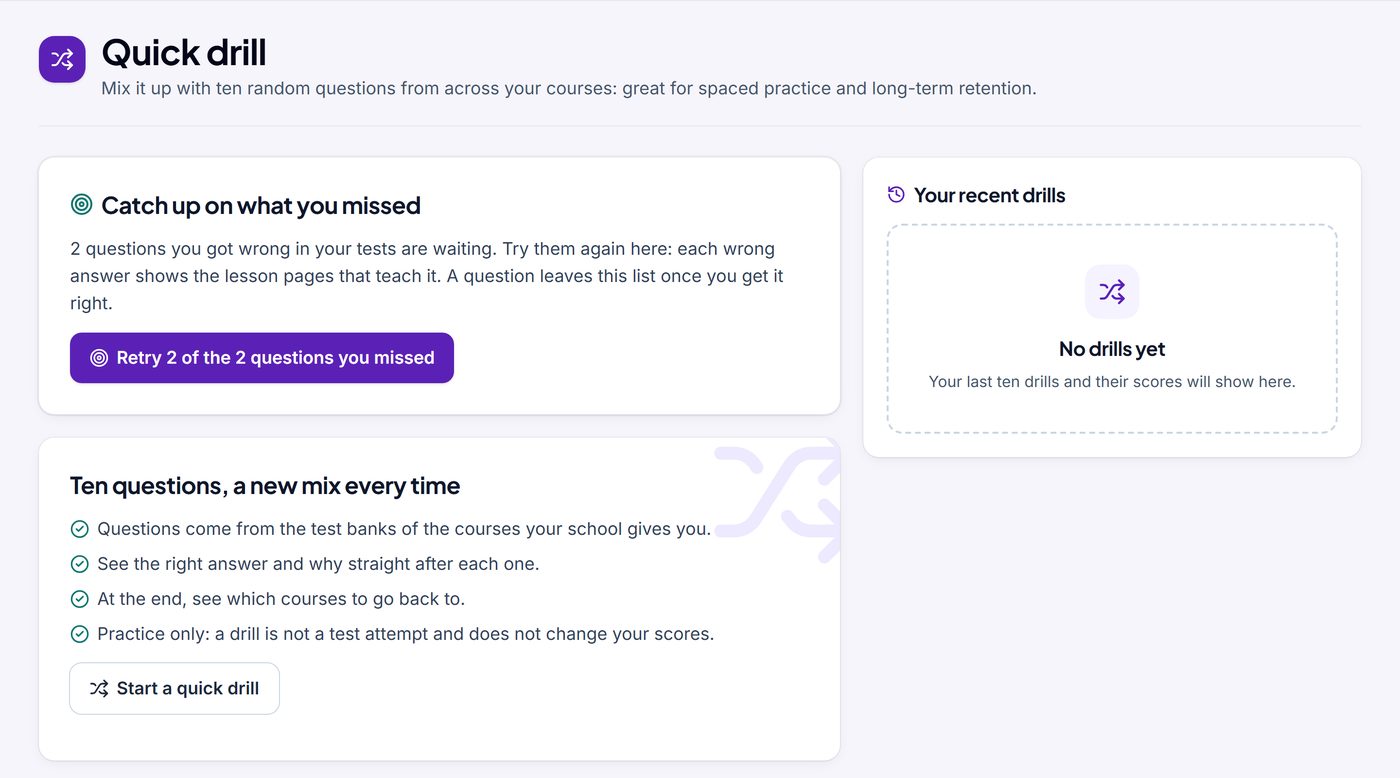
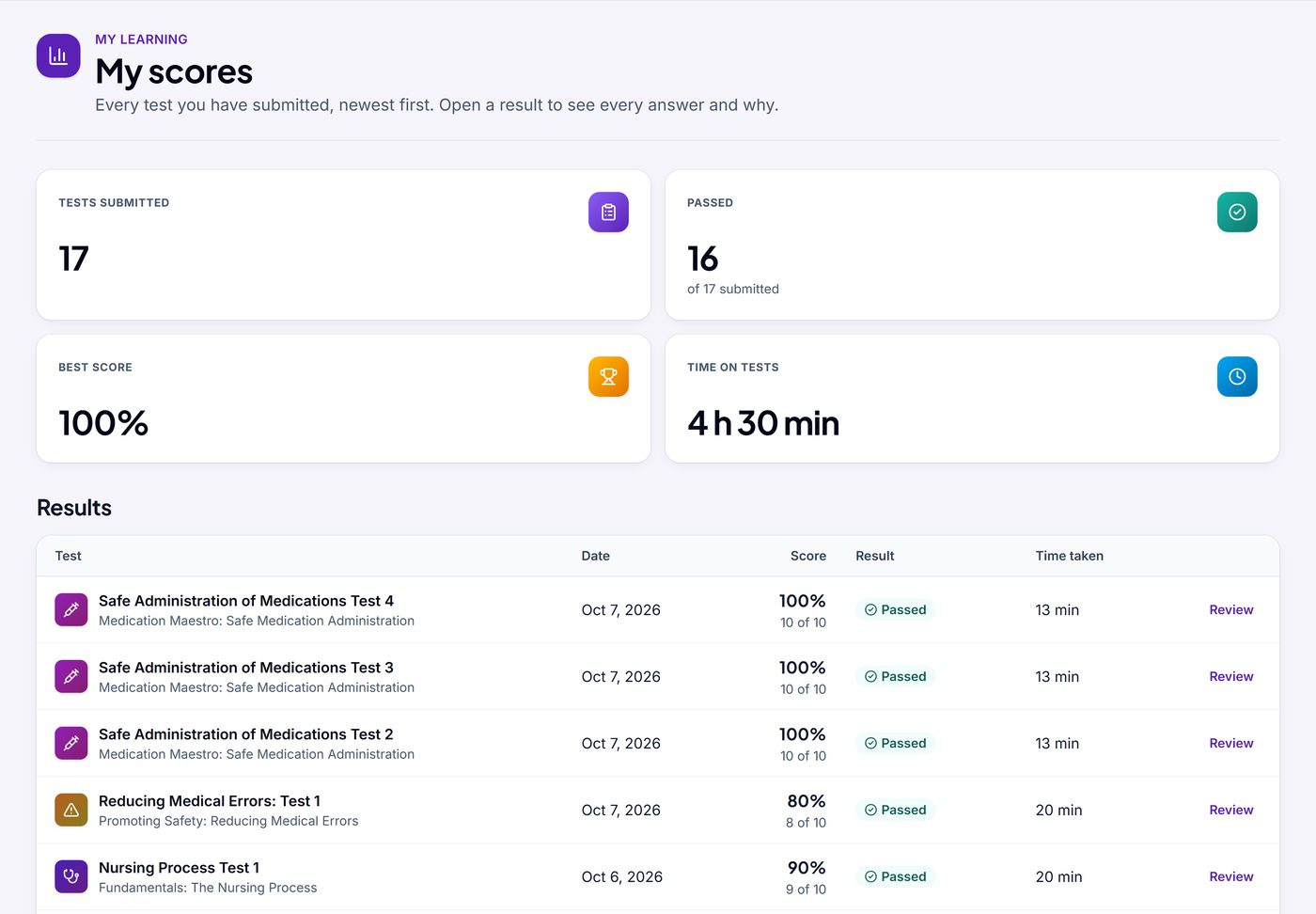
- Tests: see the correct answer and the reason why, and retake a test to improve your best score. A timed test shows the time left and saves your answers as you go. Quick drill and Catch up on what you missed are practice and never change your scores.
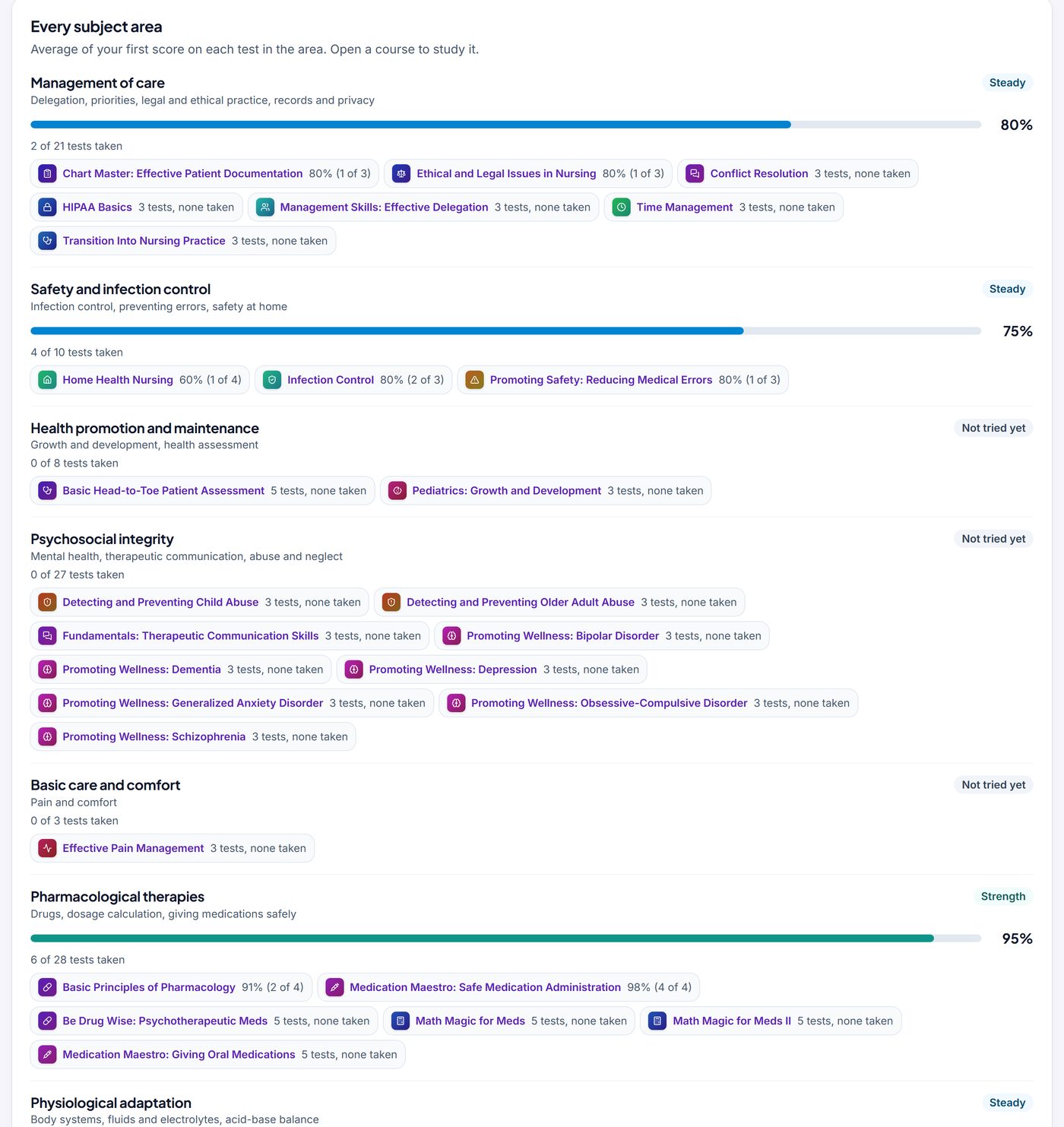
- Readiness check: how your EDGT test results look across subject areas and what to study next. It is not a prediction of an exam result.
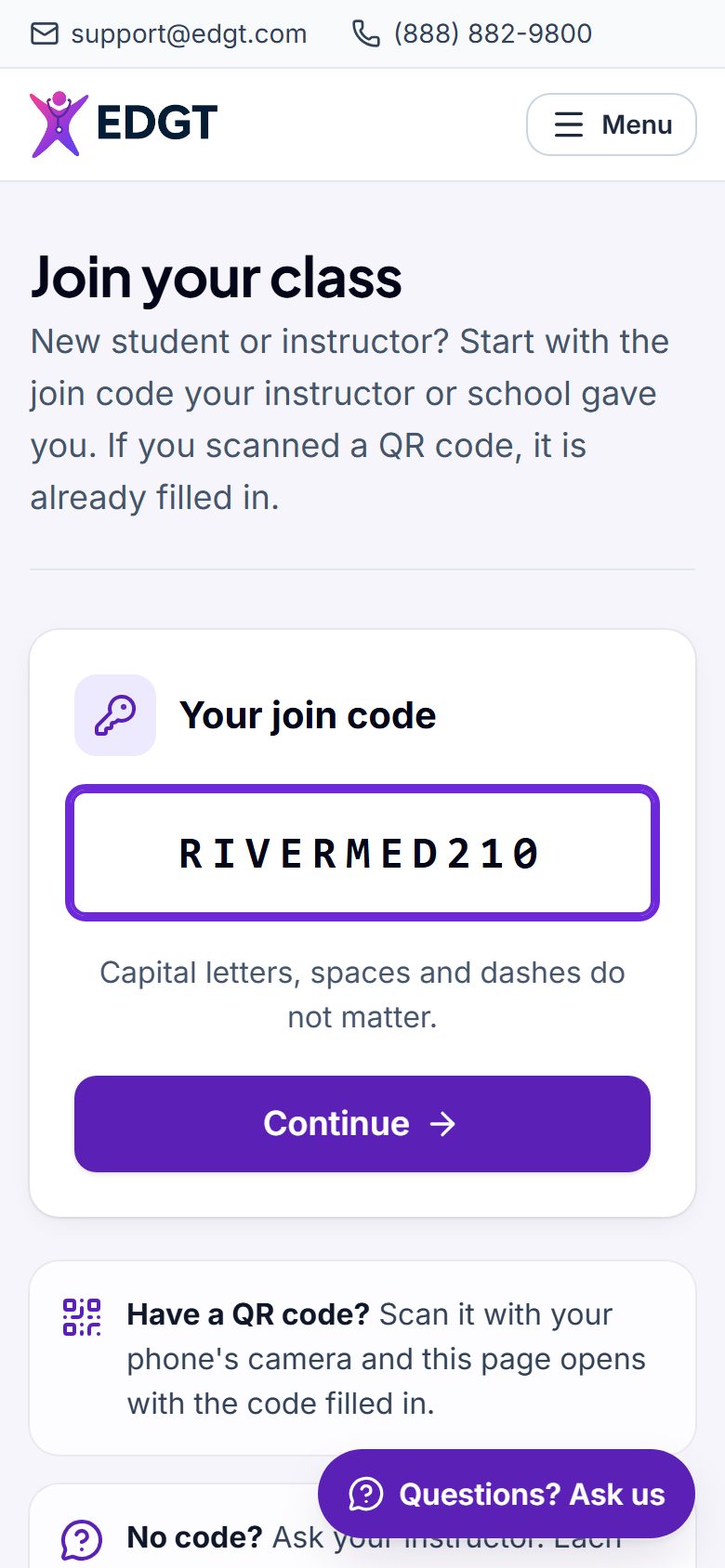
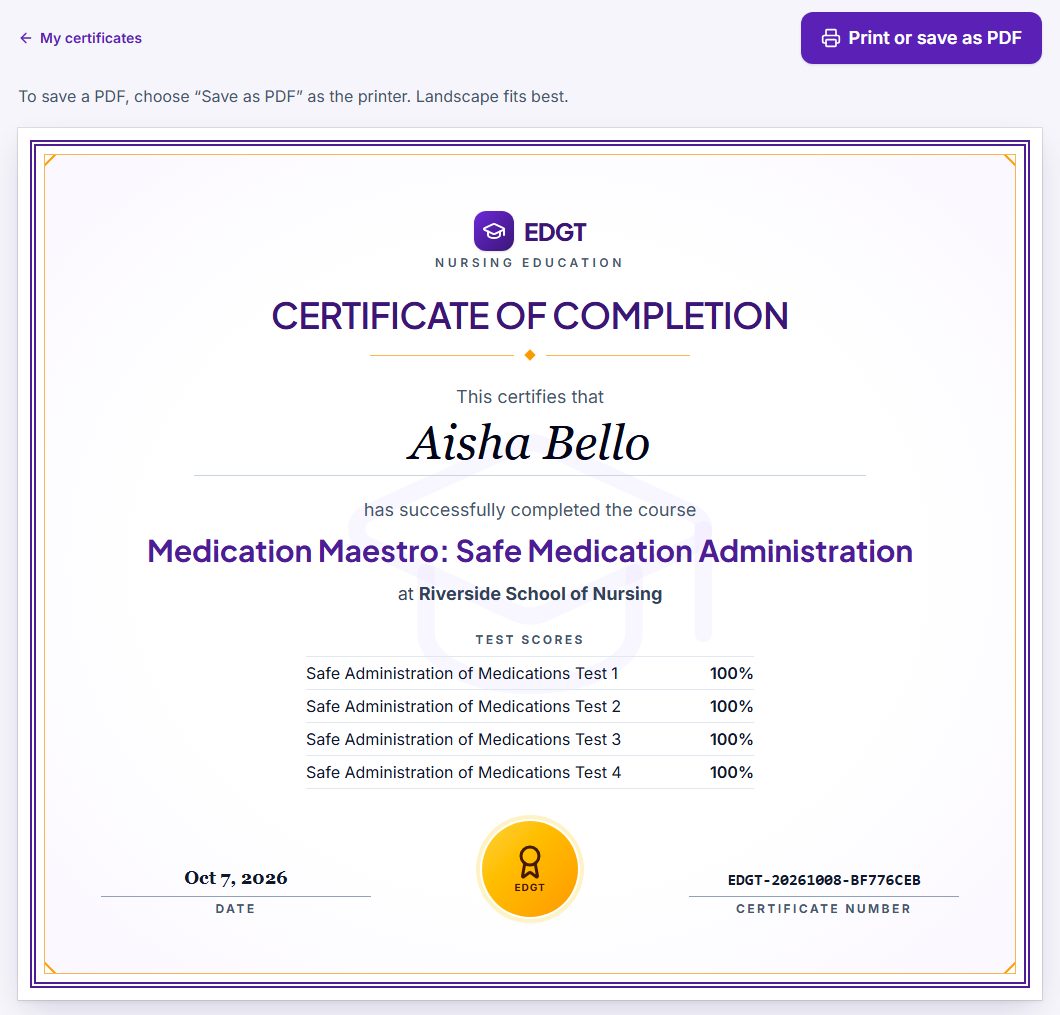
- Certificates: pass every test in a course, then print the certificate or save it as a PDF. Join a class at edgt.com/join, or scan your instructor’s QR code.
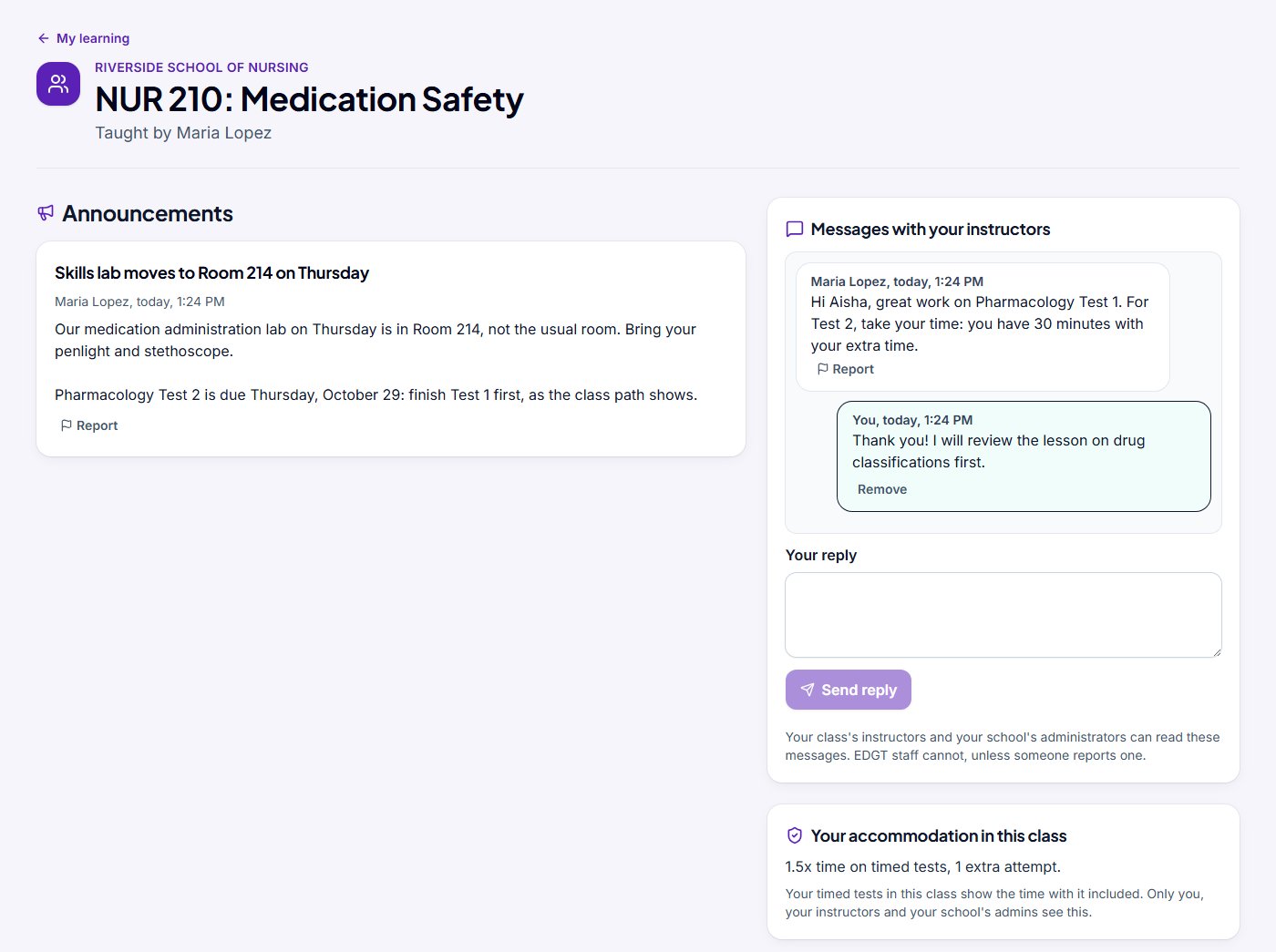
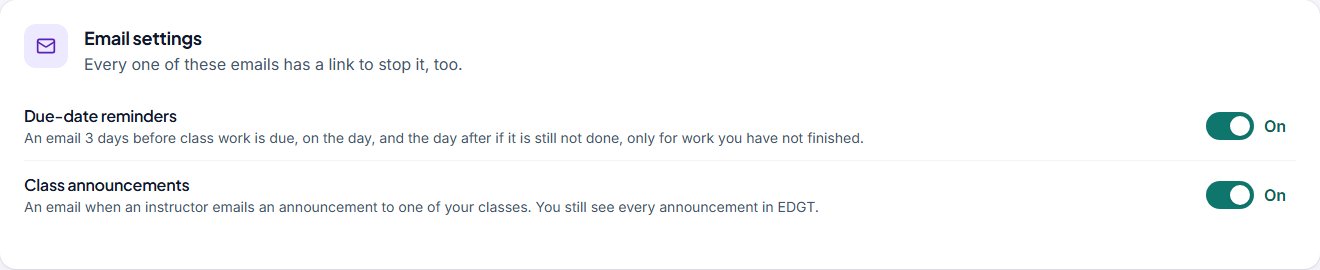
- Your classes: announcements and messages from your instructors, and your extra time or attempts if your class gives you any. Choose the emails you get (due-date reminders, class announcements) in Email settings on your home page.
See more screens (12)
EDGT Chart
Realistic charting and medication safety, from practice to the skills lab
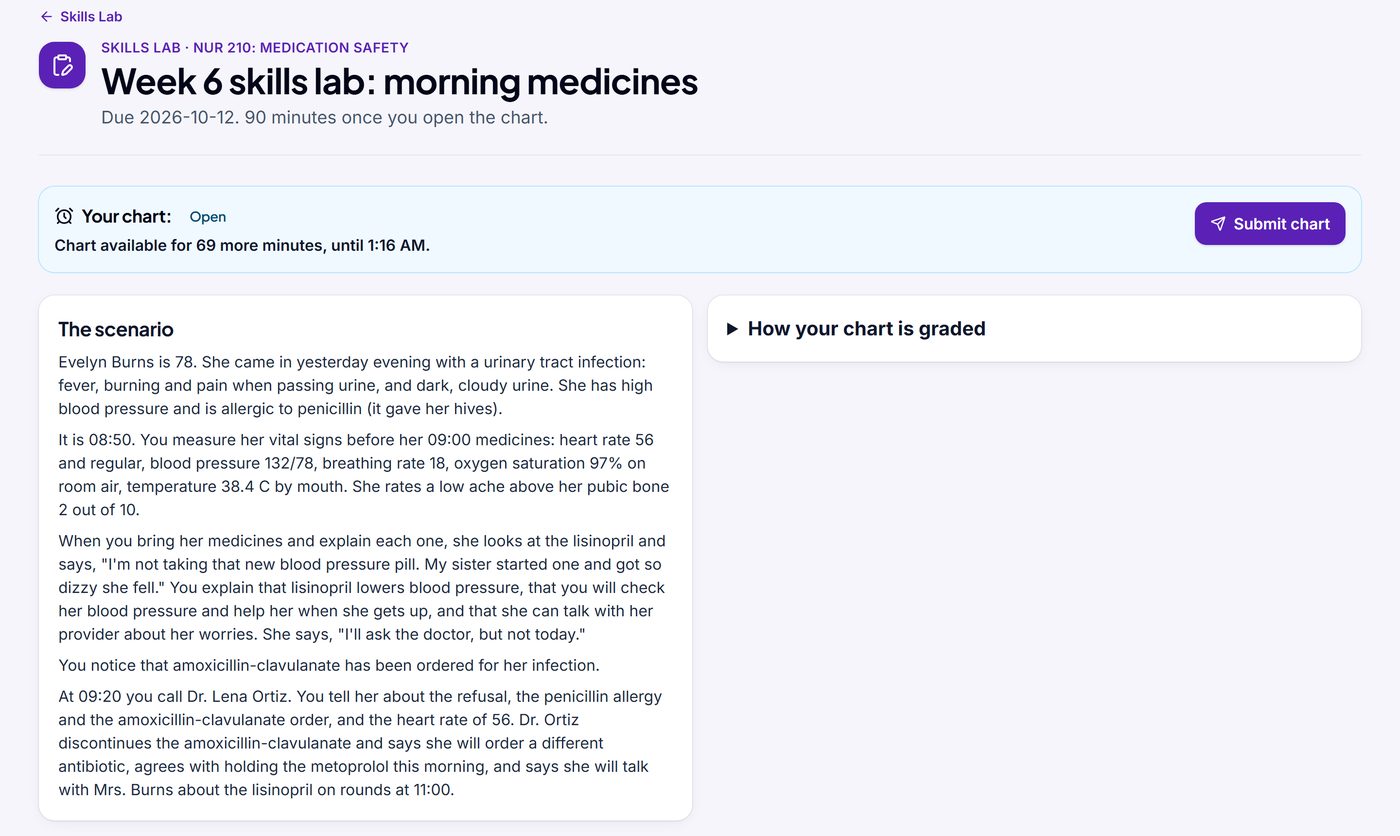
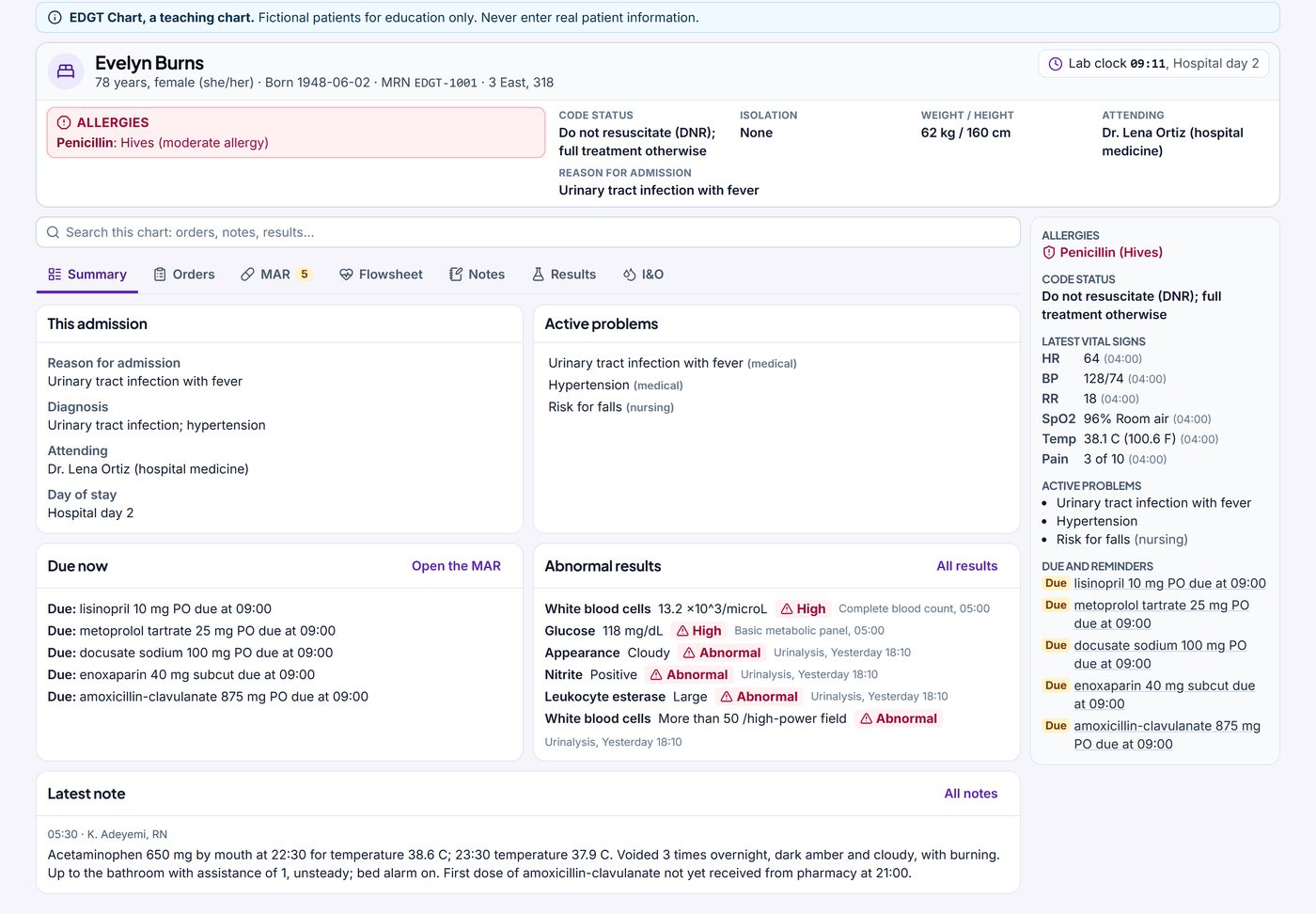
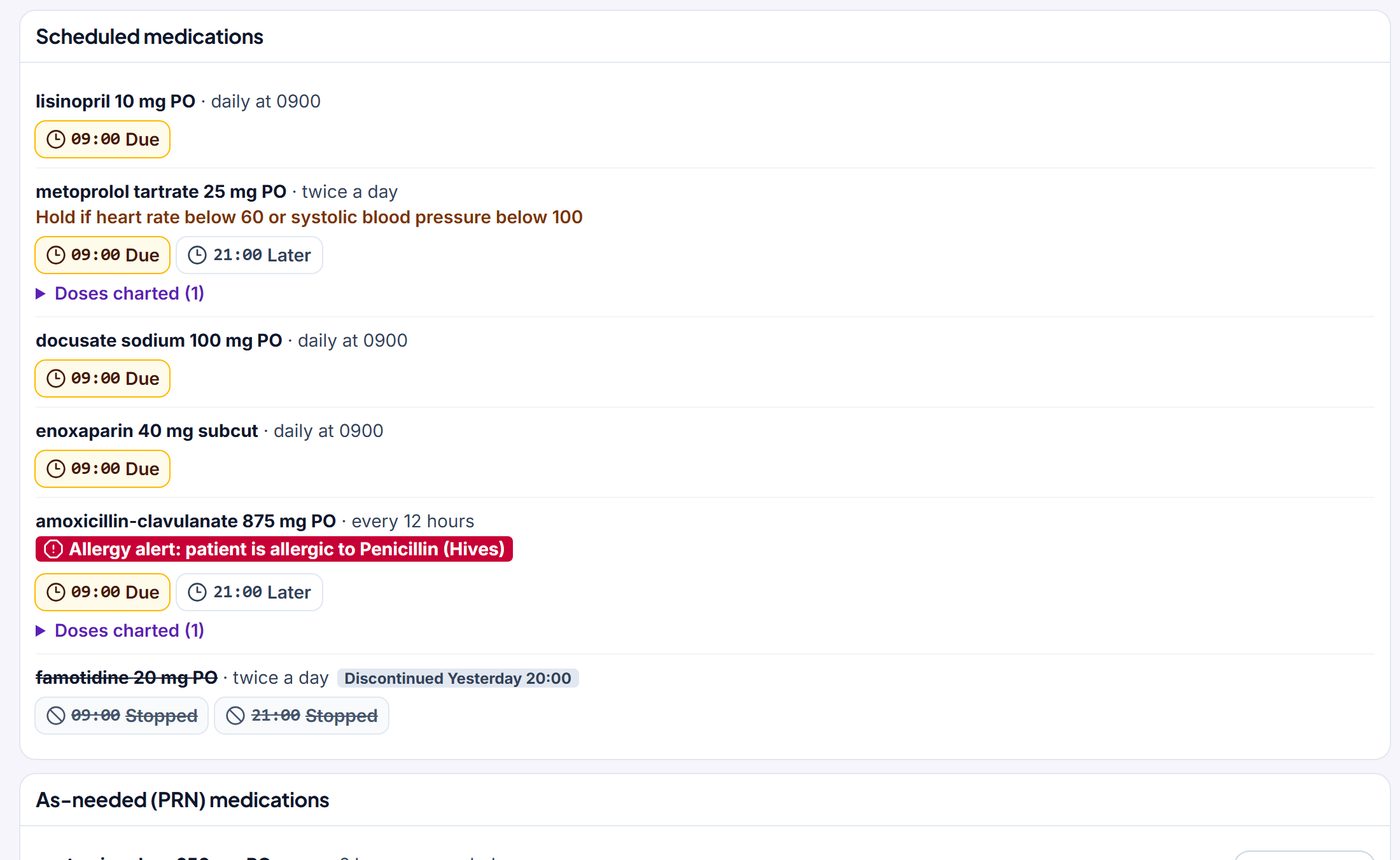
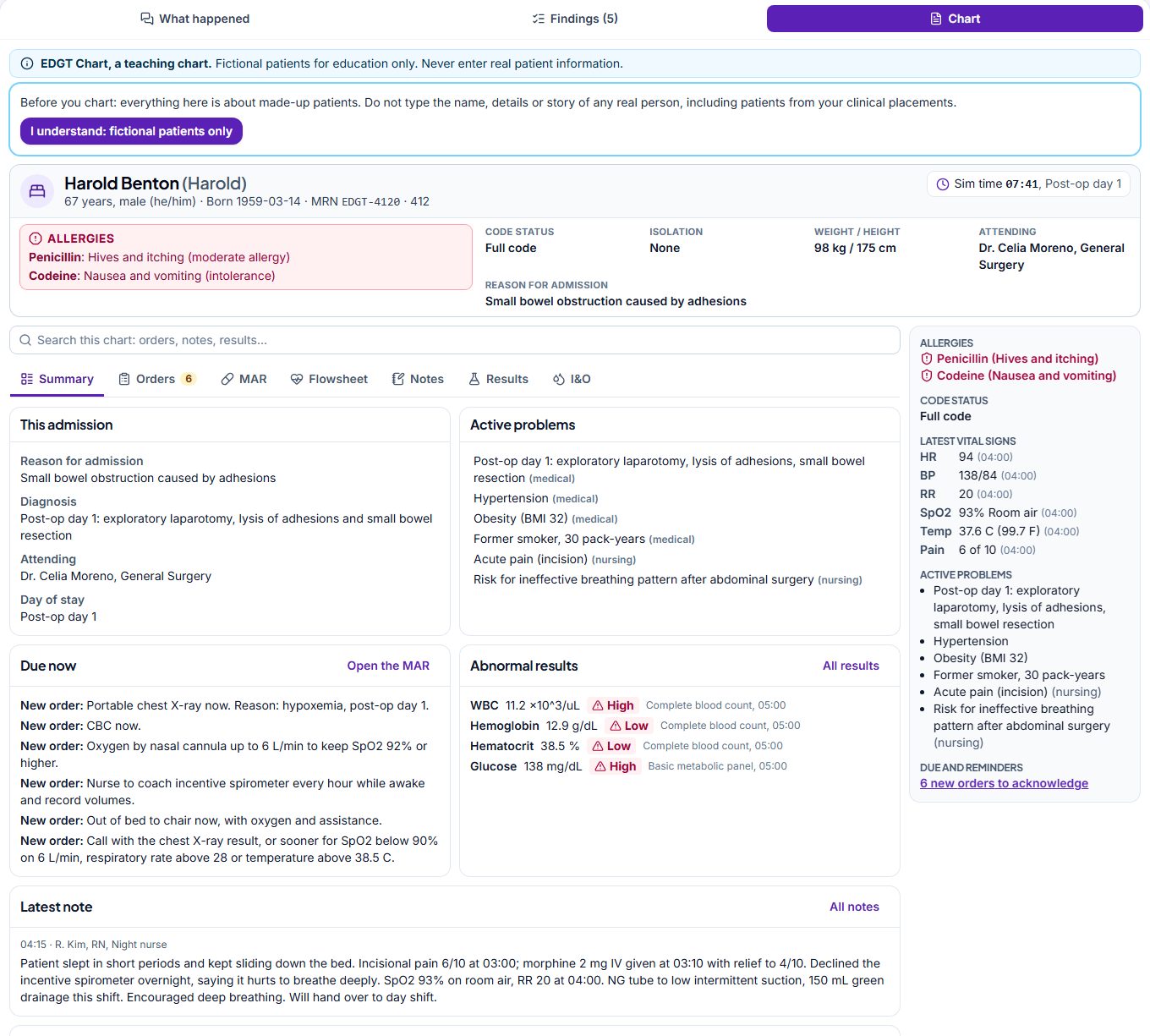
EDGT Chart is a teaching chart: an electronic health record for nursing education. Students use the same chart in practice, beside a manikin in your skills lab, and in every EDGT Sim case. Every patient is fictional.
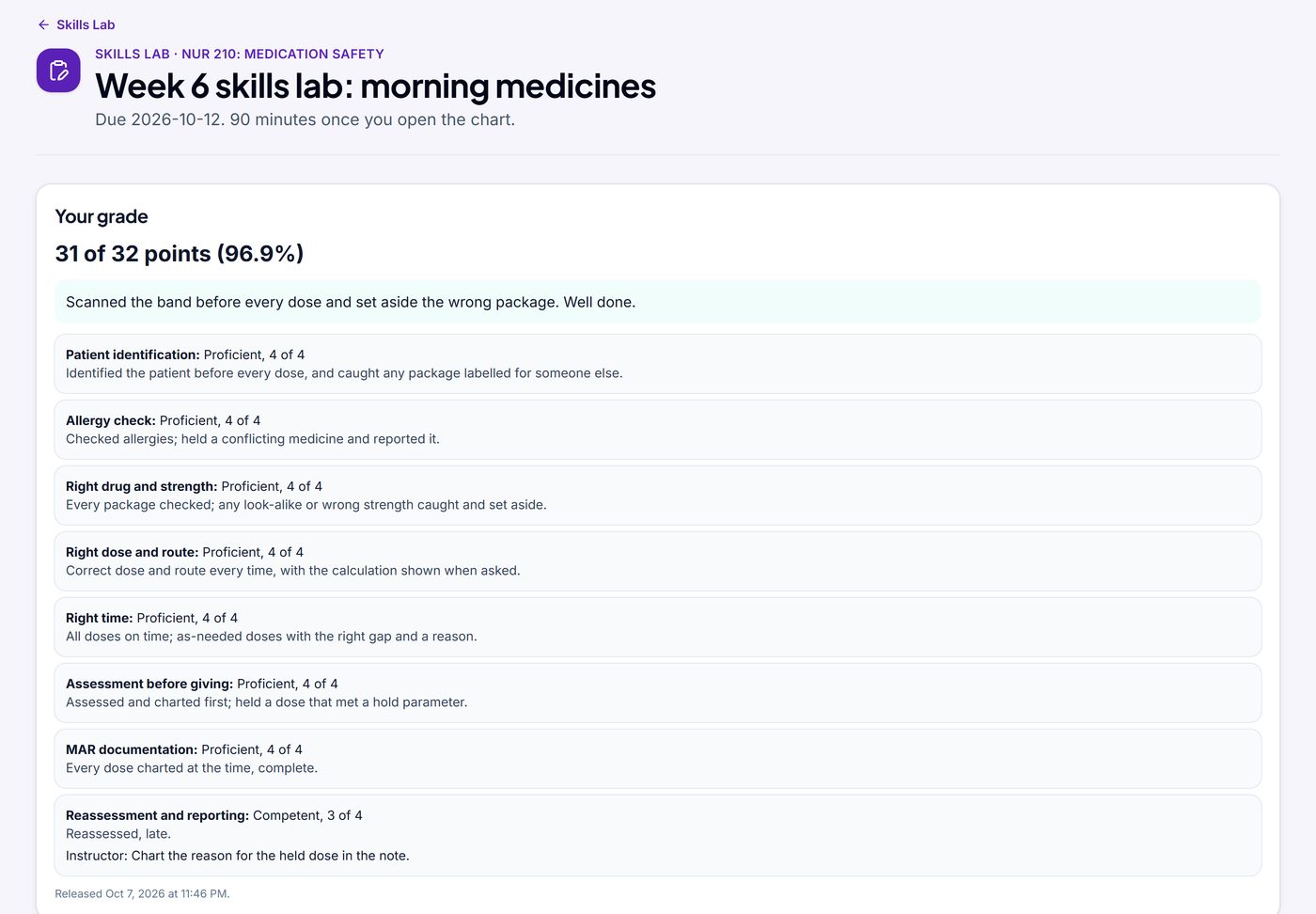
- Practice charting: students choose Check my charting. Entries are compared field by field, and notes are checked for the elements a good note needs and for “Do Not Use” abbreviations.
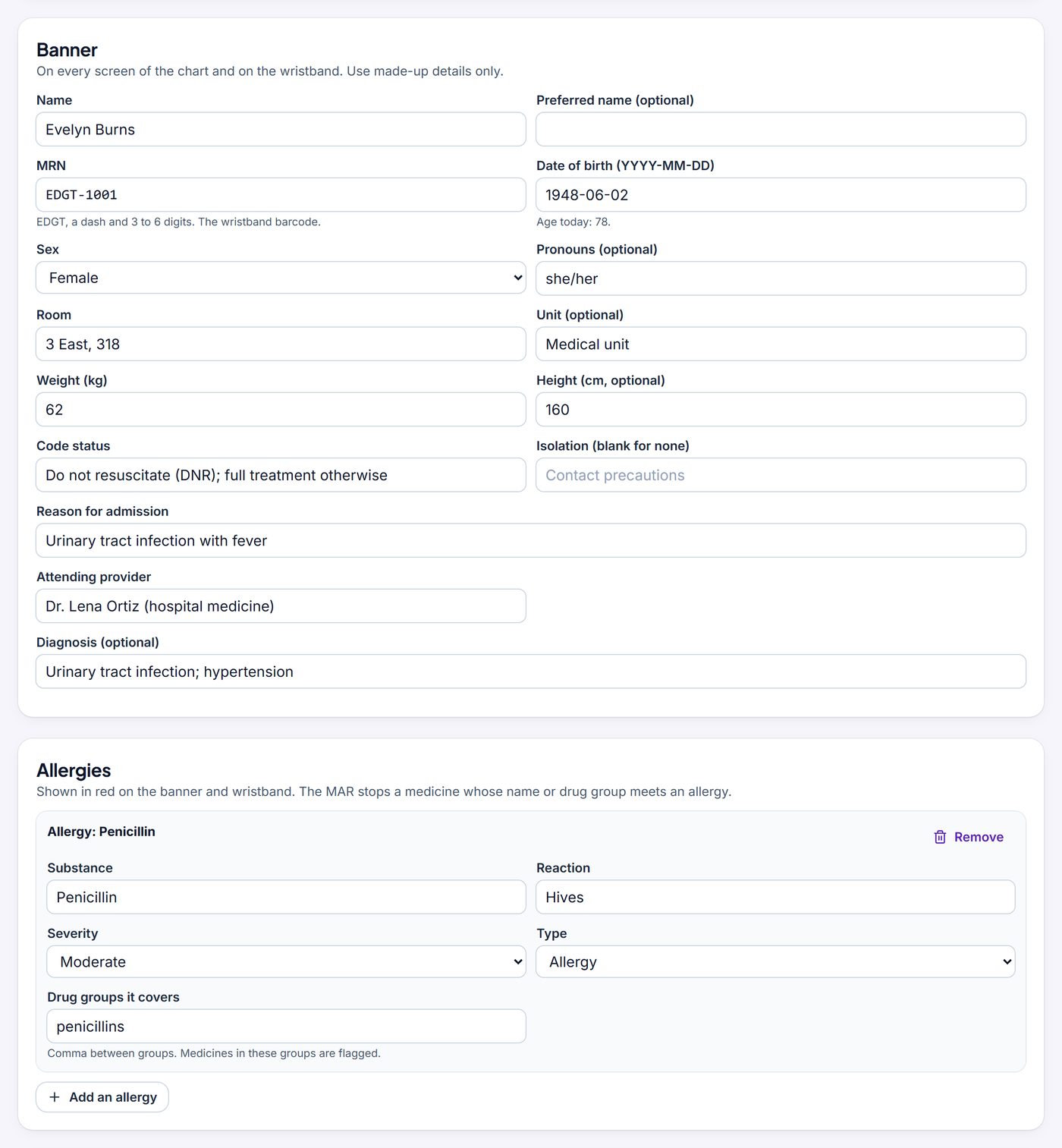
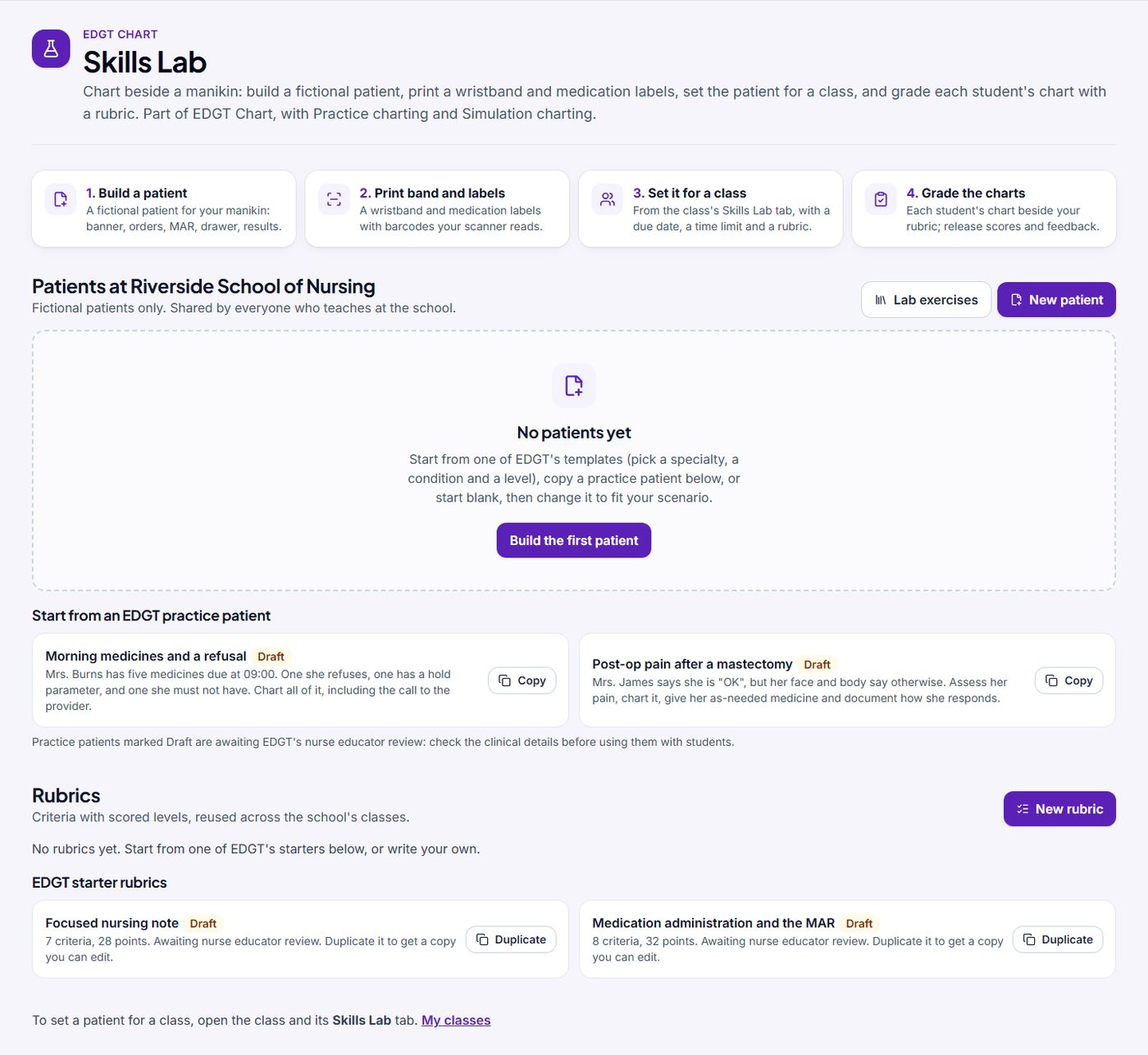
- Skills Lab: build a fictional patient (banner, allergies, history, problems, orders, a medication drawer, earlier doses, vital signs, results, notes, intake and output), from scratch or from an EDGT practice patient.
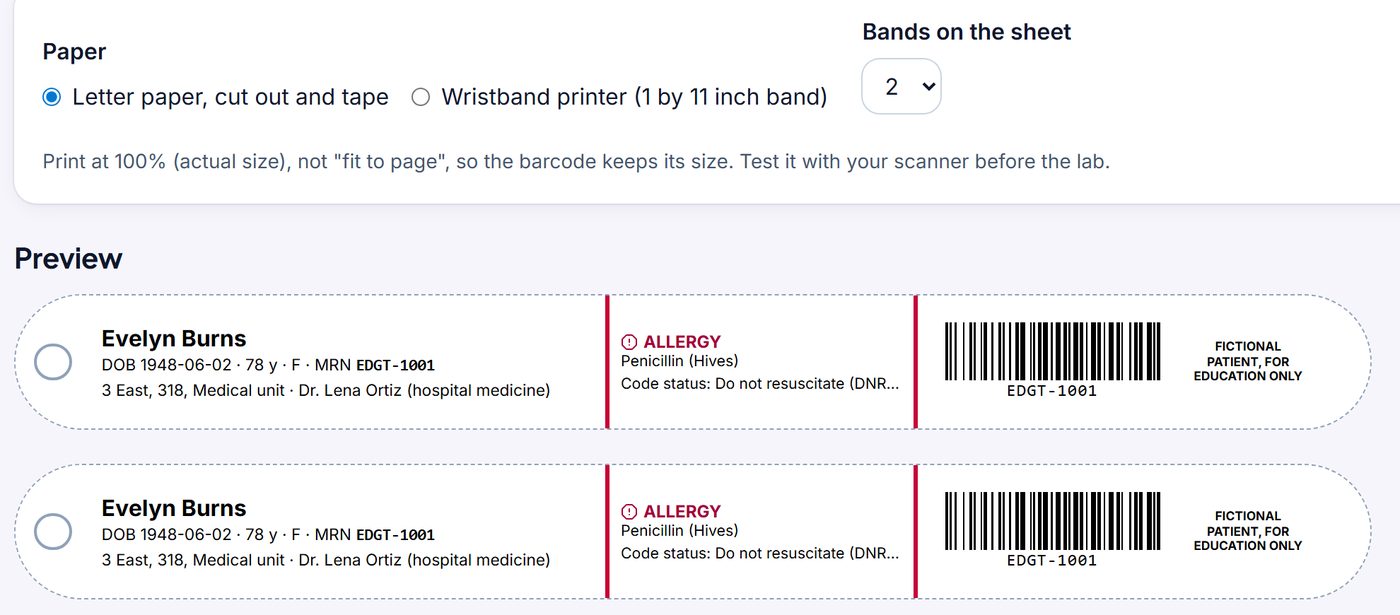
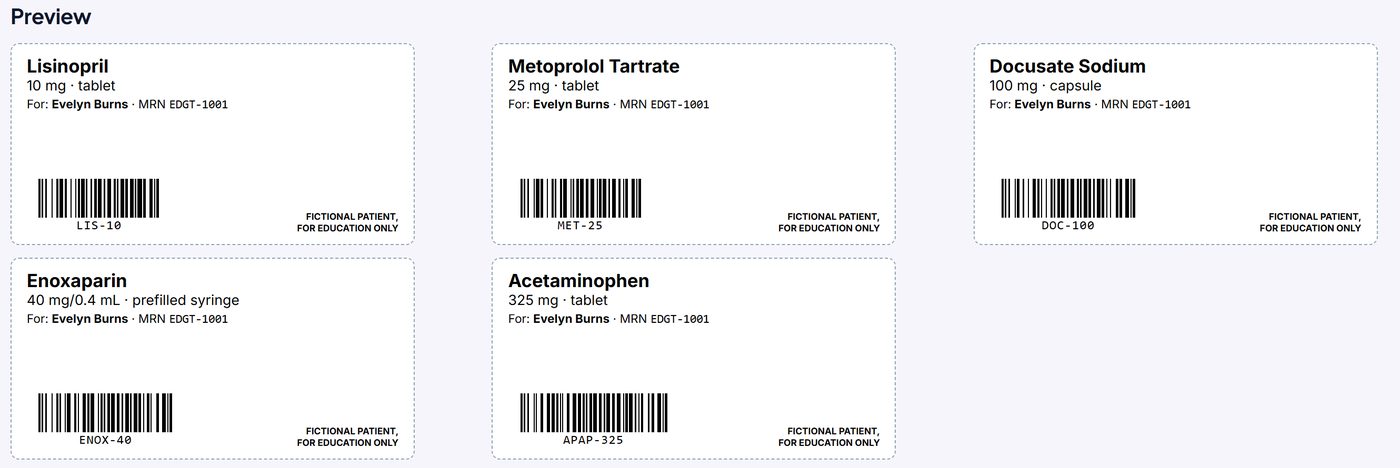
- Print the wristband and medication labels, with barcodes a USB barcode scanner reads. Every one says fictional patient, for education only.
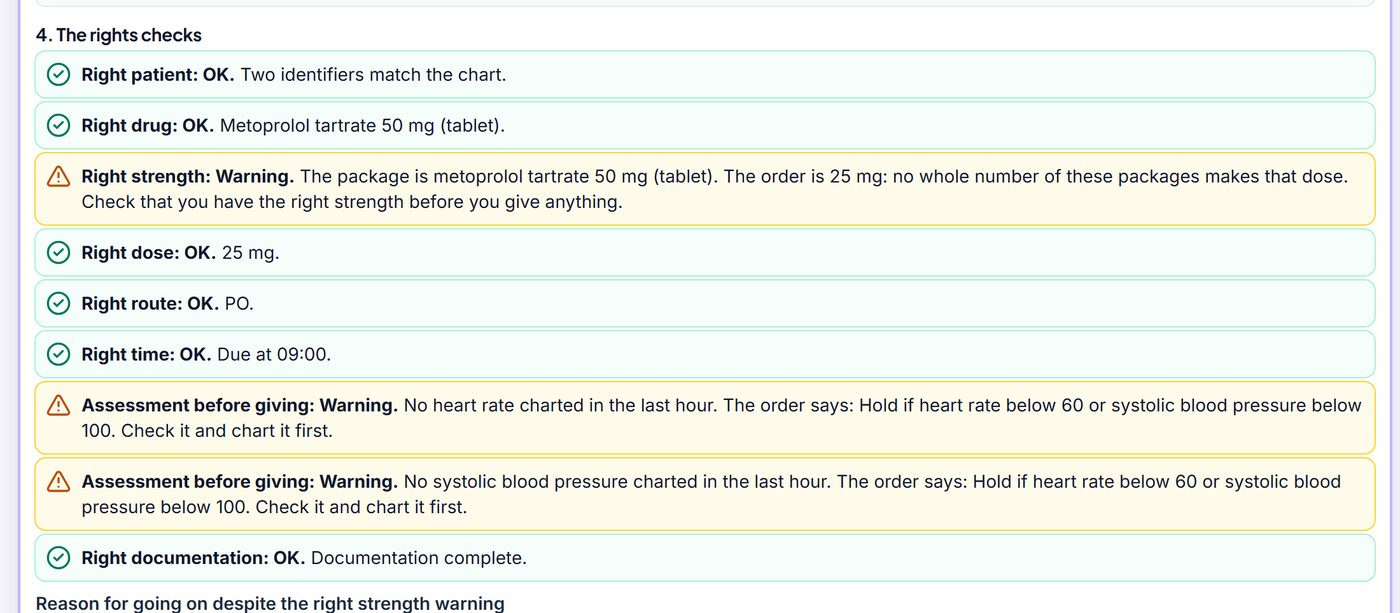
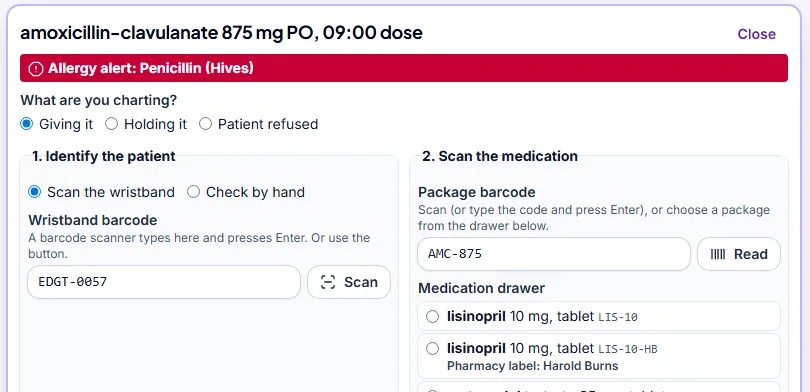
- Set it for a class with a due date, the time each student has and a rubric. Each student charts in their own copy, scans the wristband and the package, and EDGT checks the rights and stops a medicine the patient is allergic to.
- Medication-safety exercises: put a deliberately wrong package in the drawer (another patient’s, the wrong strength, a look-alike drug) and the starter rubric scores whether the student caught it.
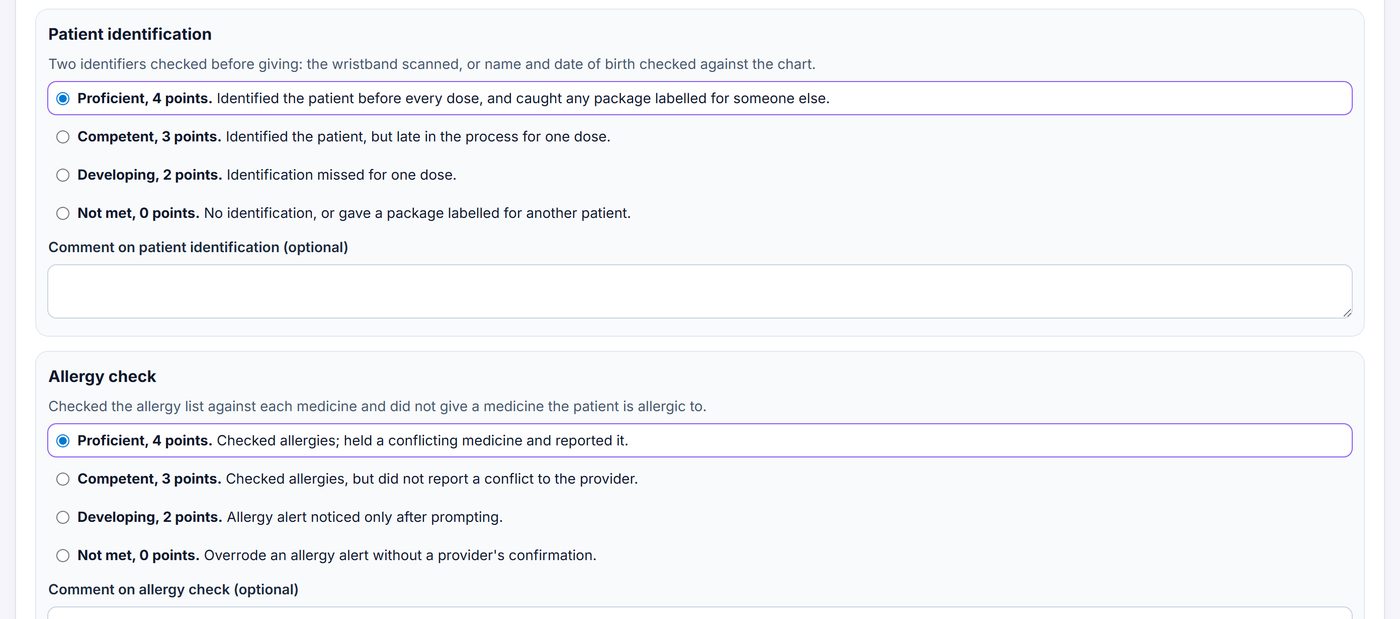
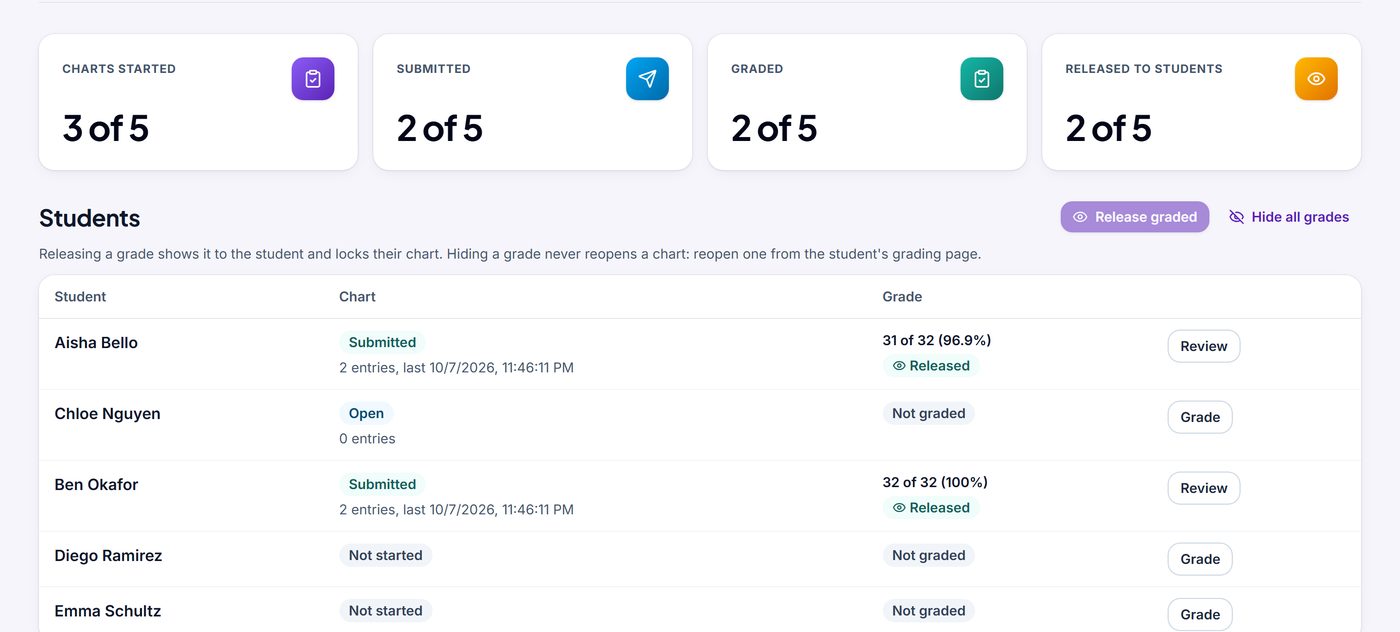
- Grade with an EDGT starter rubric (awaiting nurse educator review) or your own, then release grades. With your LMS connected, grades go to the gradebook.
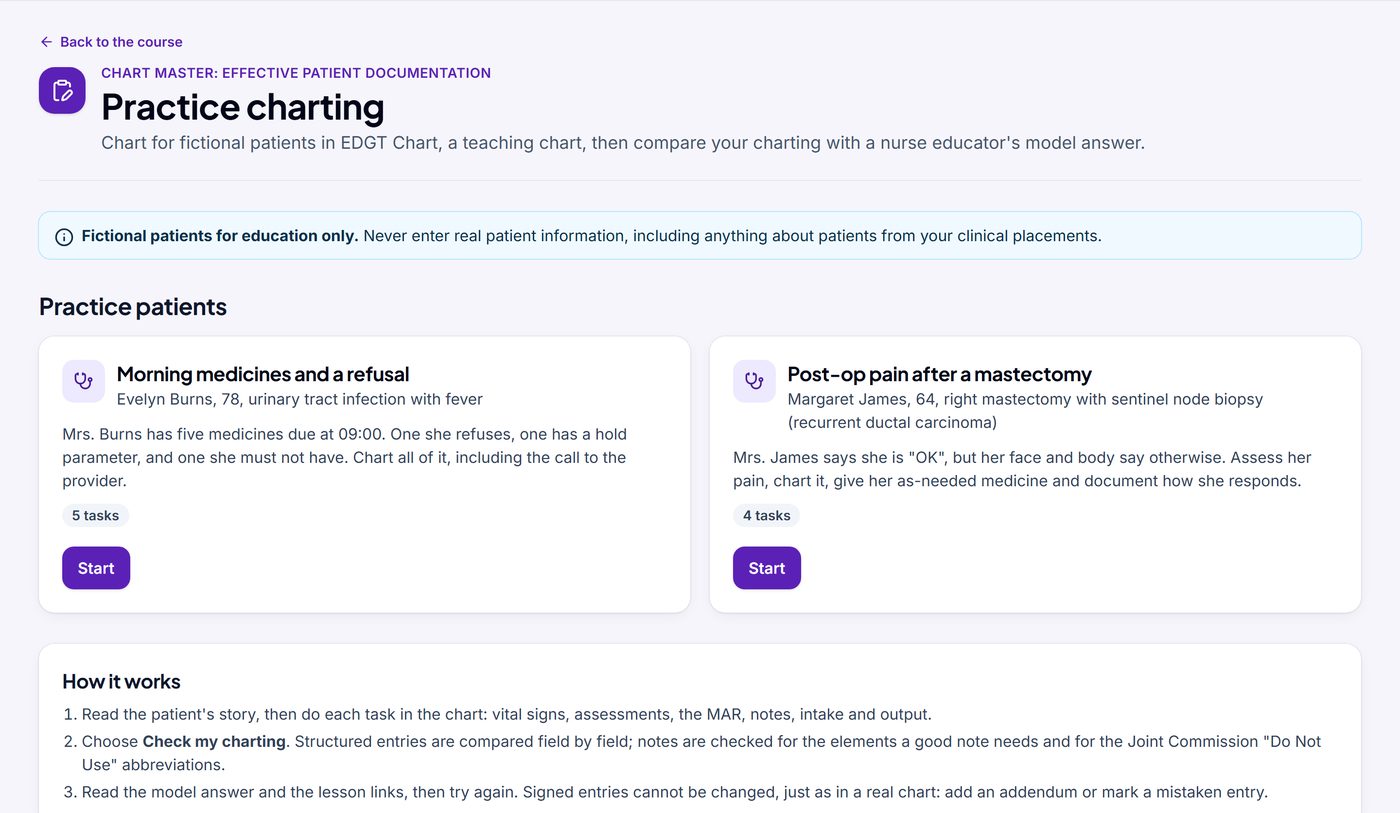
See more screens (8)
EDGT Sim
Clinical simulation in the browser
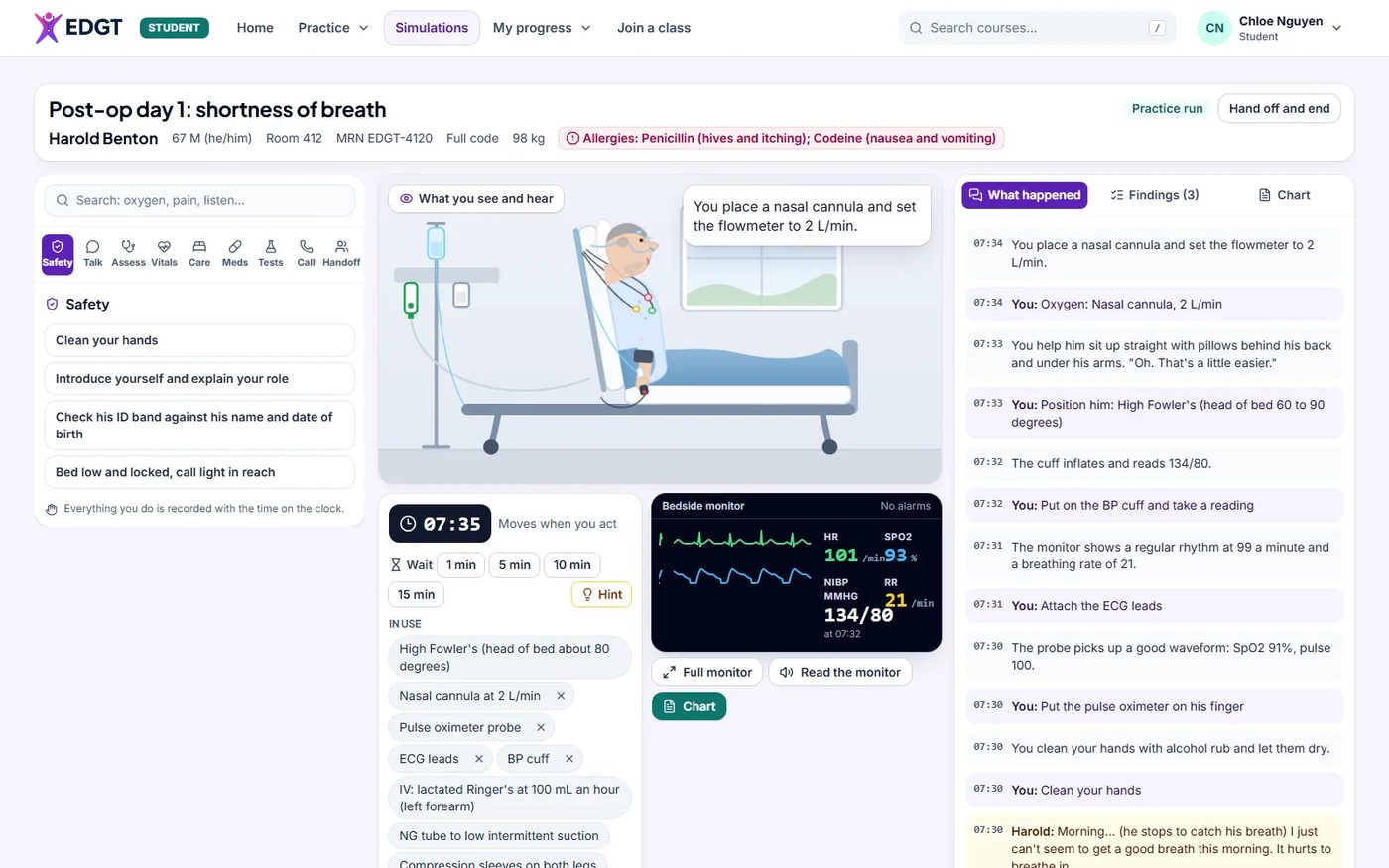
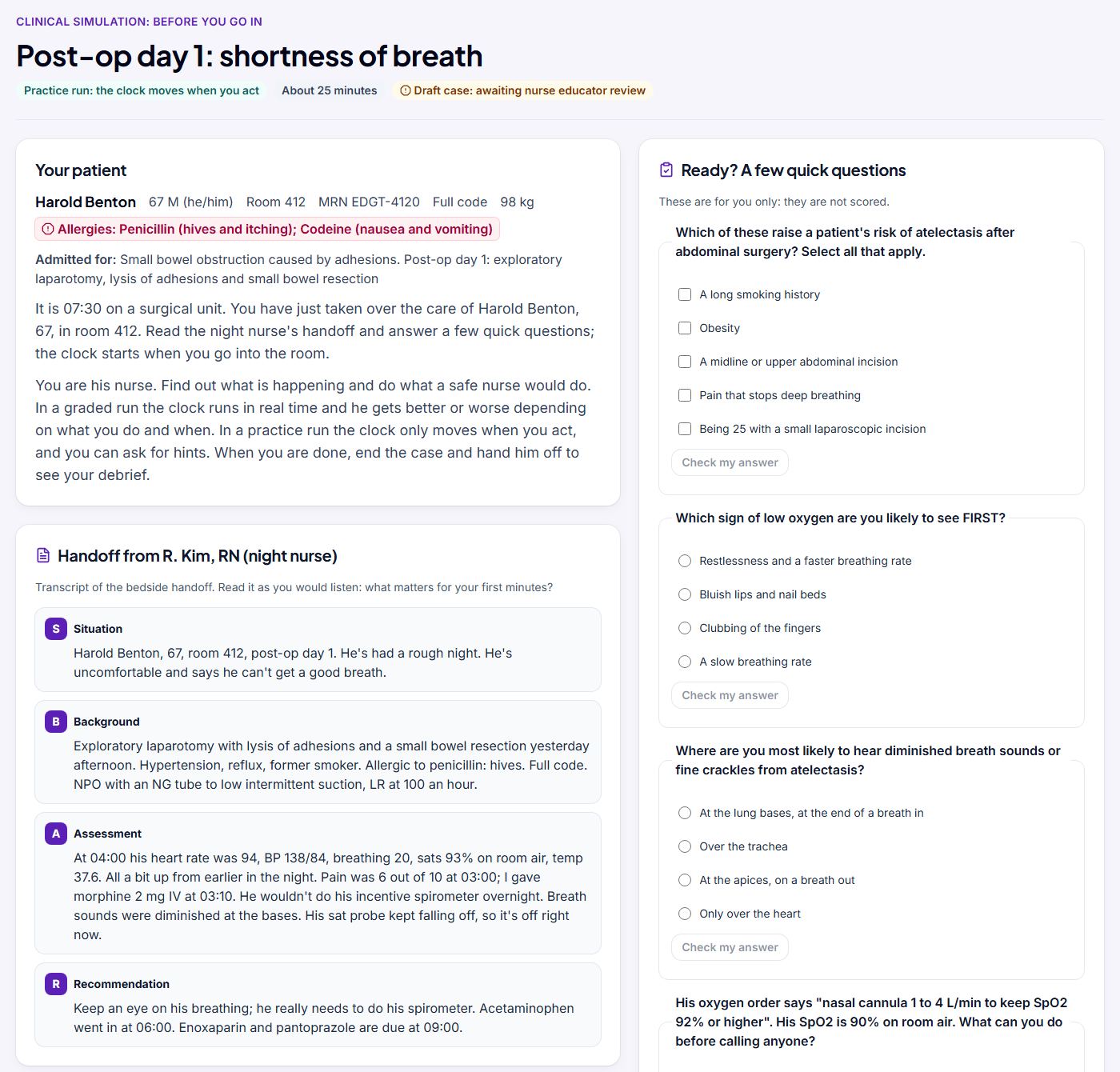
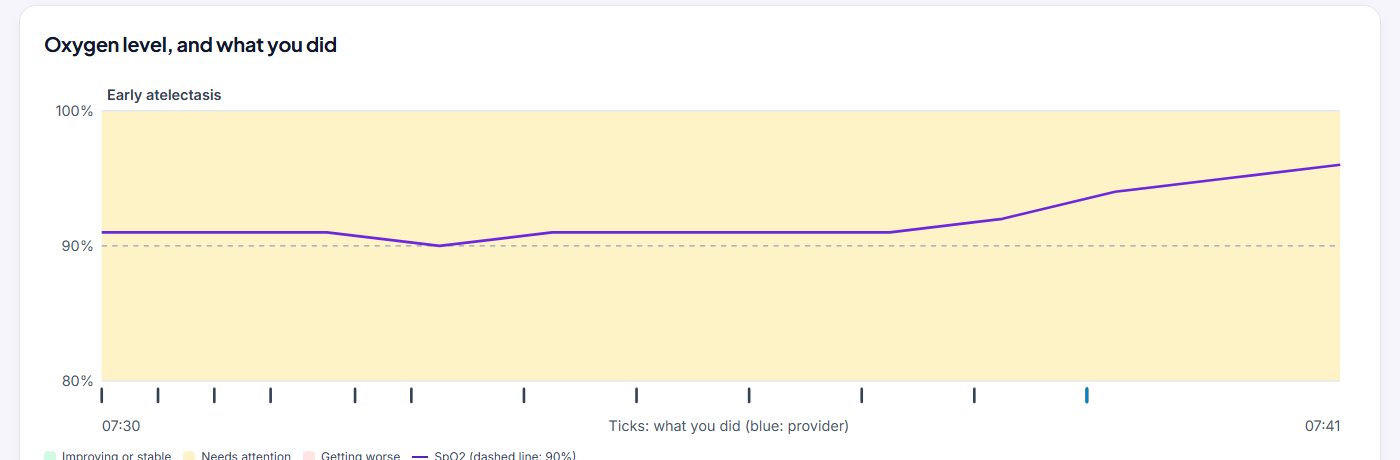
Students care for a patient who responds to what they do, then see a scored debrief.
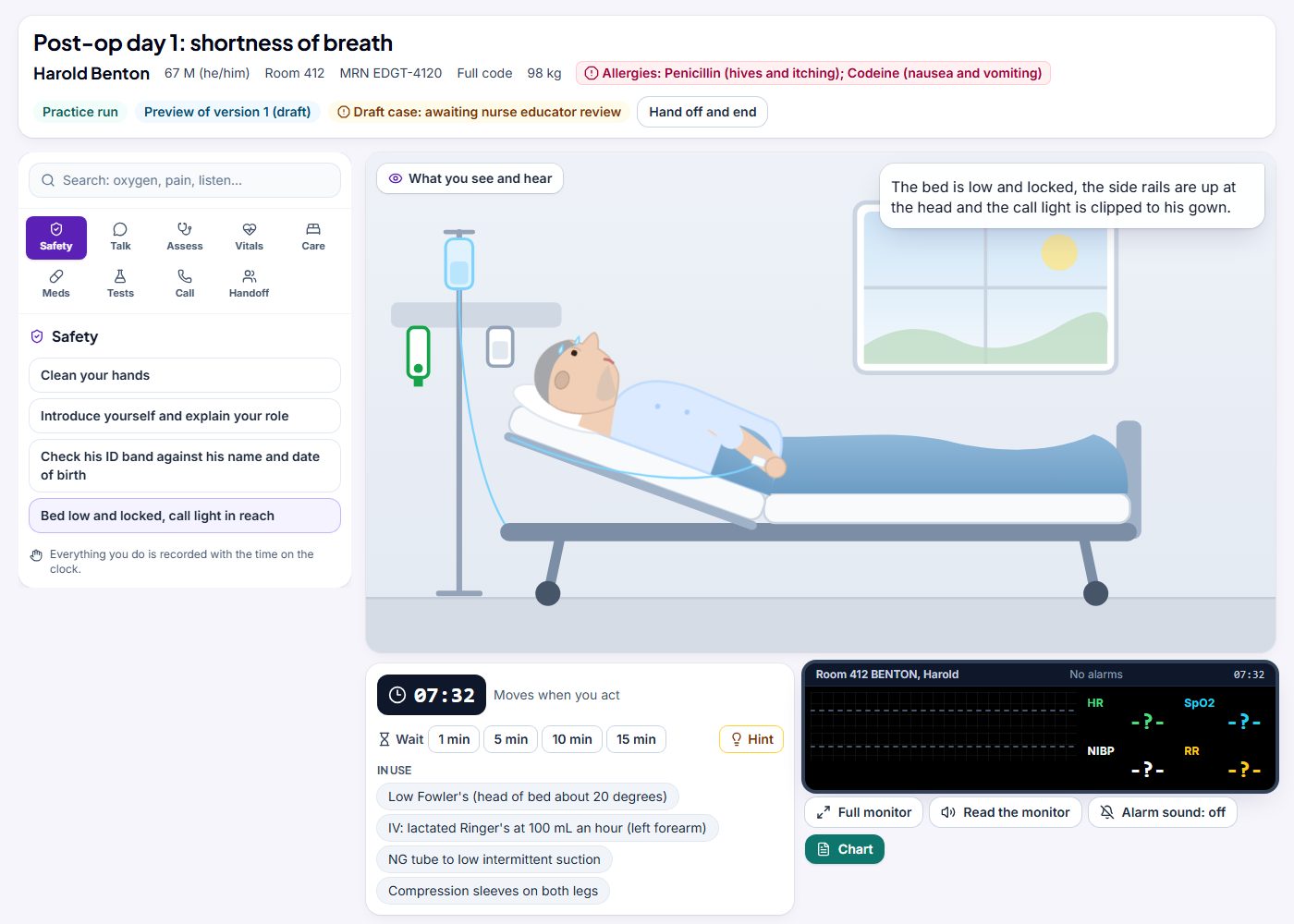
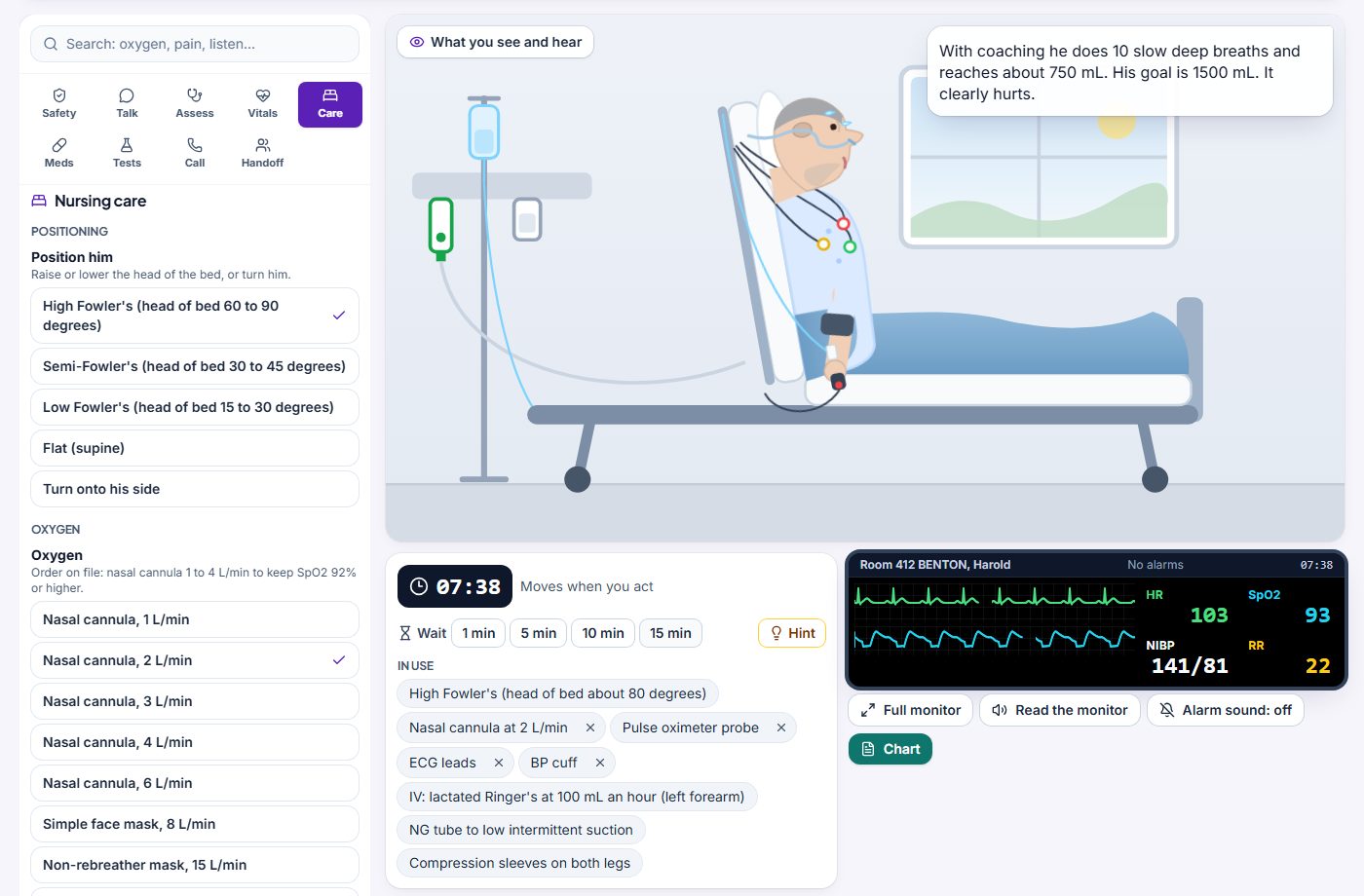
- At the bedside: safety actions first (hand hygiene, introduce yourself, check the ID band, bed low and locked). In a practice run the clock moves when you act, and everything is recorded with the time on the clock.
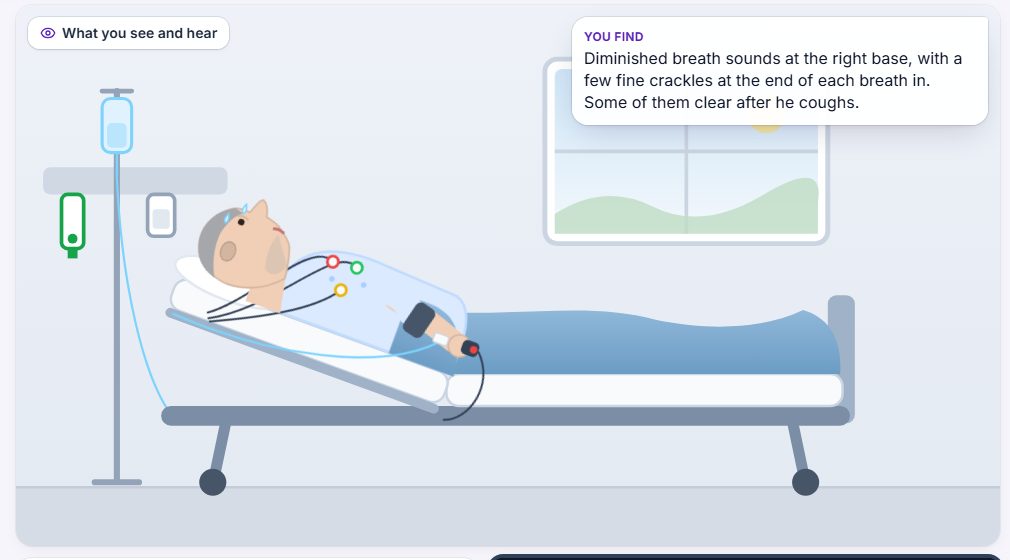
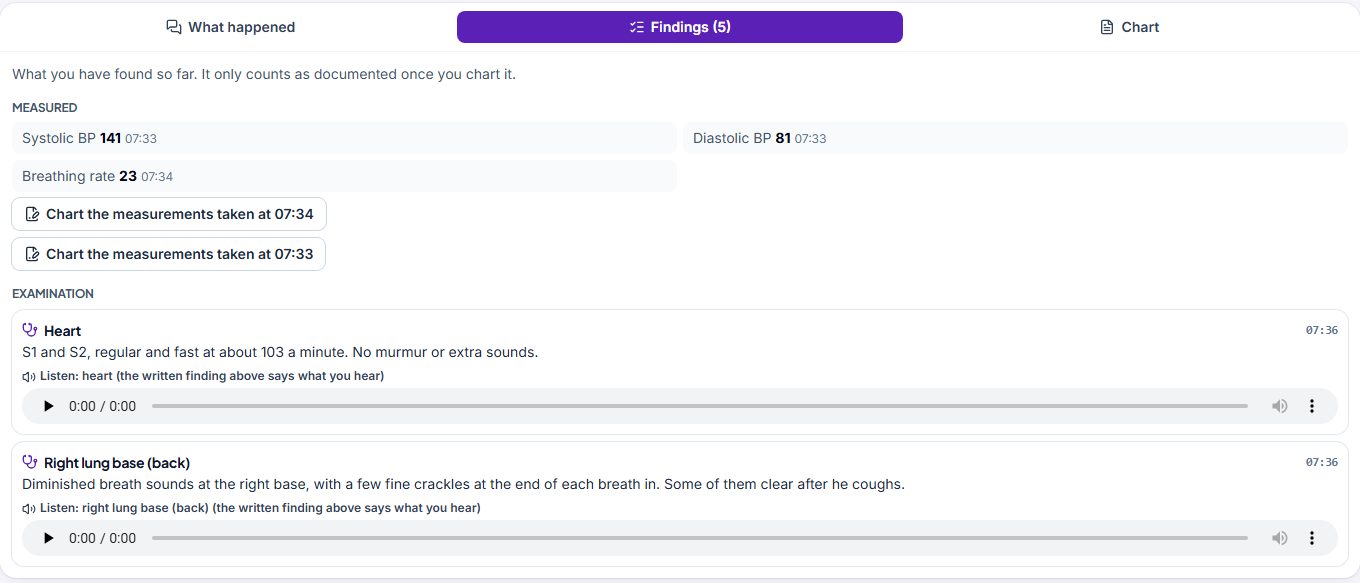
- Assessment: look, feel, tap and listen, with every finding written out. Heart and lung sounds play, each with a written description.
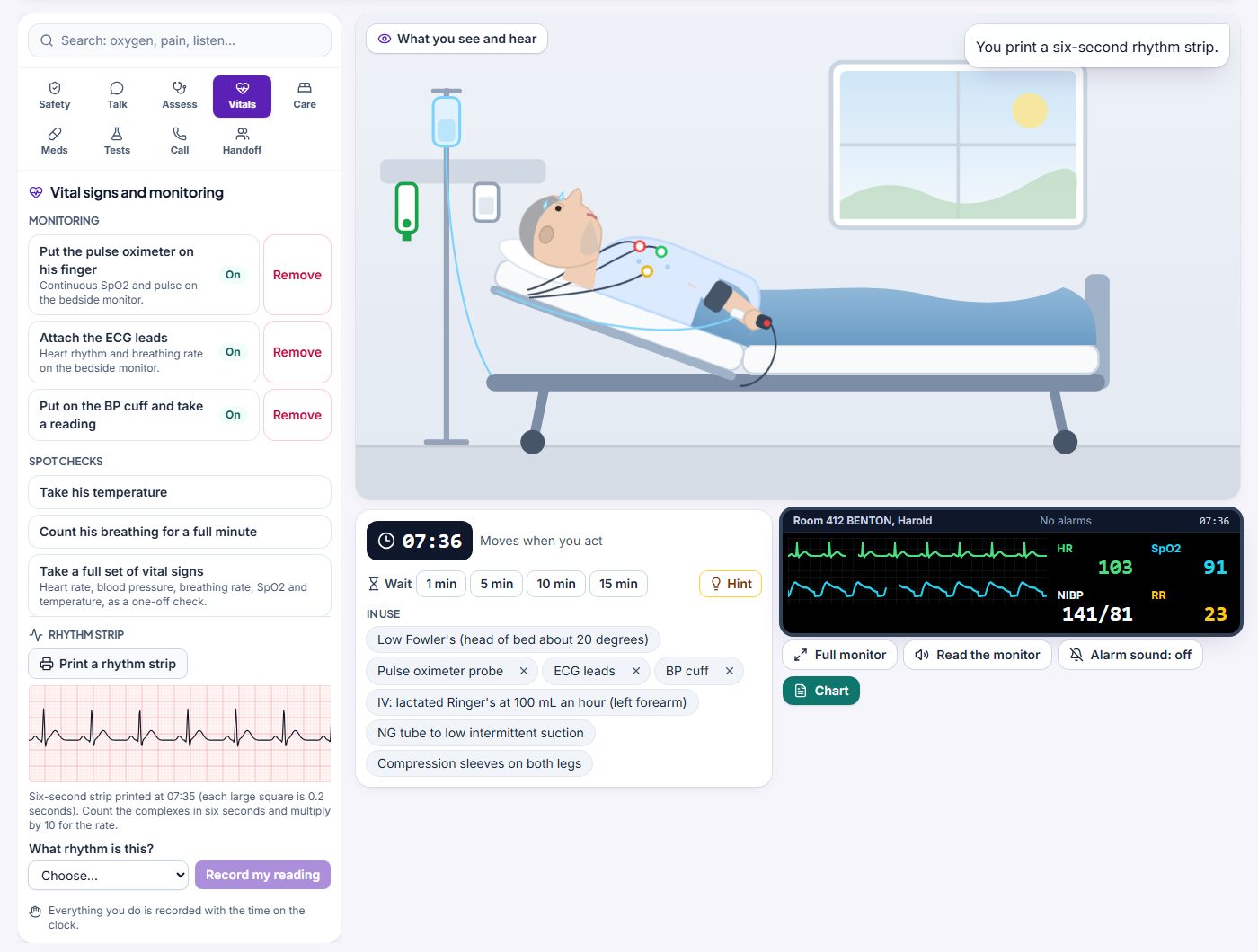
- Vital signs: take them by hand, or use the live bedside monitor and print a six-second rhythm strip on ECG paper.
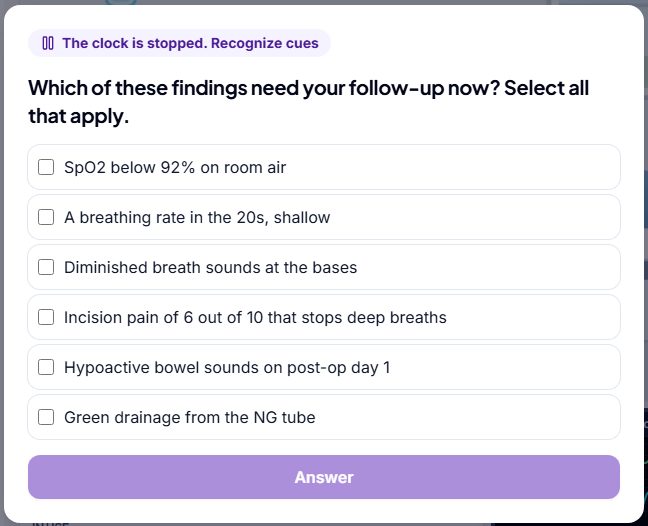
- Care: position the patient, set the oxygen device and the pump. At key moments the clock stops for a clinical judgment question.
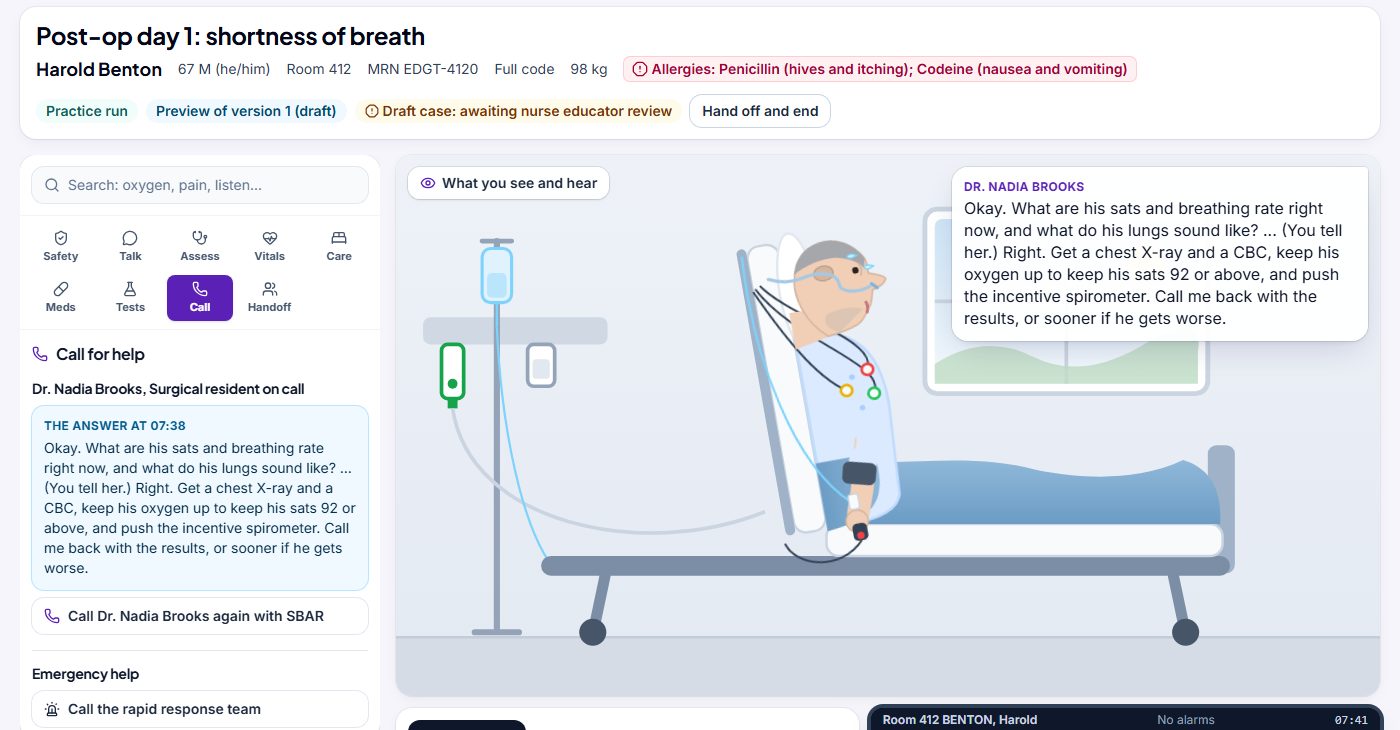
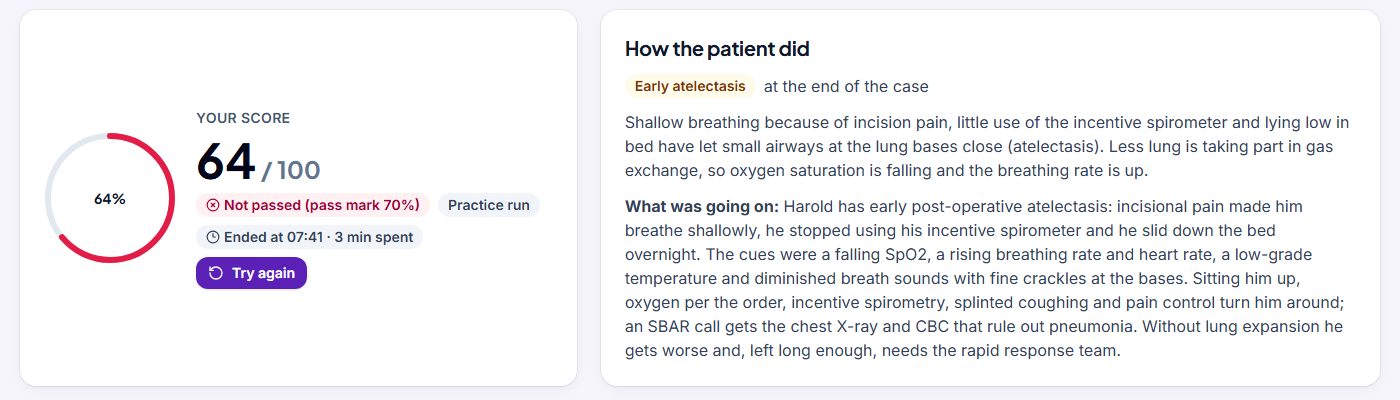
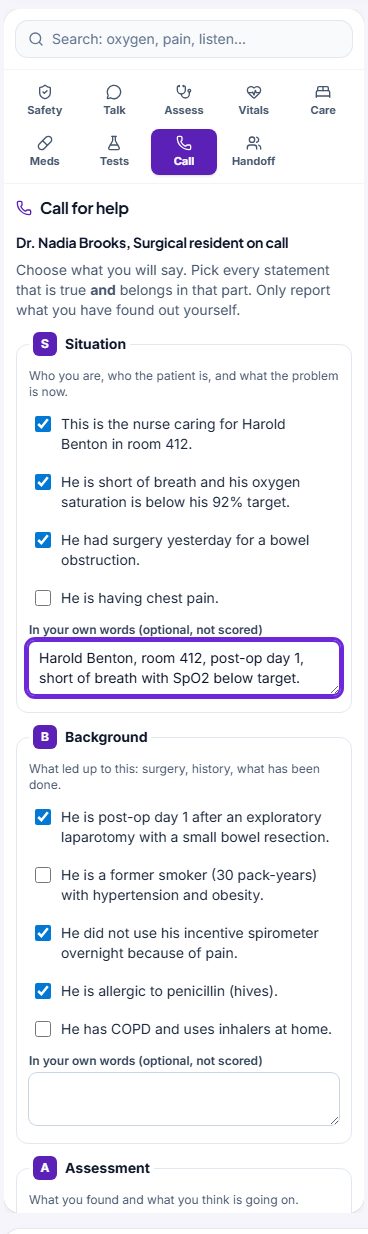
- Call the provider or the rapid response team and hand off in SBAR. The chart is built into every case, and a scored debrief shows how the patient did.
See more screens (8)
Help and accessibility
- In EDGT, Help has answers to common questions, and you can contact support from there.
- Email [email protected] or call (888) 882-9800, during normal business hours, Eastern Time (ET).
- EDGT works with a keyboard and screen readers, can read lessons aloud, and fits a phone screen. It is designed and tested against WCAG 2.2 AA in our own testing; an independent audit is planned.
- Nothing to install: Chrome or Edge 111 or newer, Firefox 128 or newer, or Safari 16.4 or newer, on a computer, a Chromebook or a phone.
Questions about the move
I cannot sign in. What do I do?
Use the same email or username and password as on the old site. If you have forgotten your password, choose Forgot password? on the sign-in page.
If you have not signed in for more than two years, join with a code from your instructor or school at edgt.com/join, using the same email address as before. Still stuck? Email [email protected] or call (888) 882-9800.
Will my old bookmarks and links still work?
Yes. Old EDGT addresses, in your bookmarks or in links in your LMS course or syllabus, take you to the new page that does the same job. An old page with nothing new in its place takes you to the home page, with a note that the page has moved.
I am in the middle of a test on Sunday evening.
Please submit it before 8:00 pm ET on Sunday, October 11. From Monday morning you can take tests on the new site.
Instructors: should I set work due on Sunday evening?
Please do not set work due that evening, and ask students to finish any test before 8:00 pm ET.
Can my students use EDGT Sim now?
EDGT Sim is currently in a founding-school pilot. Every student-facing EDGT Sim case goes through clinical review and approval before publication. To ask about the pilot, email [email protected].
Does my school have EDGT Chart?
Schools with a current licence have EDGT Chart Preview included through June 30, 2027. Your school admin sees it in the Licences tab.